

Key Highlights
- Open Google Sheets and navigate to the sheet containing data you want to protect.
- Select the cells you wish to lock by clicking and dragging or holding Ctrl/Cmd for non-adjacent selections.
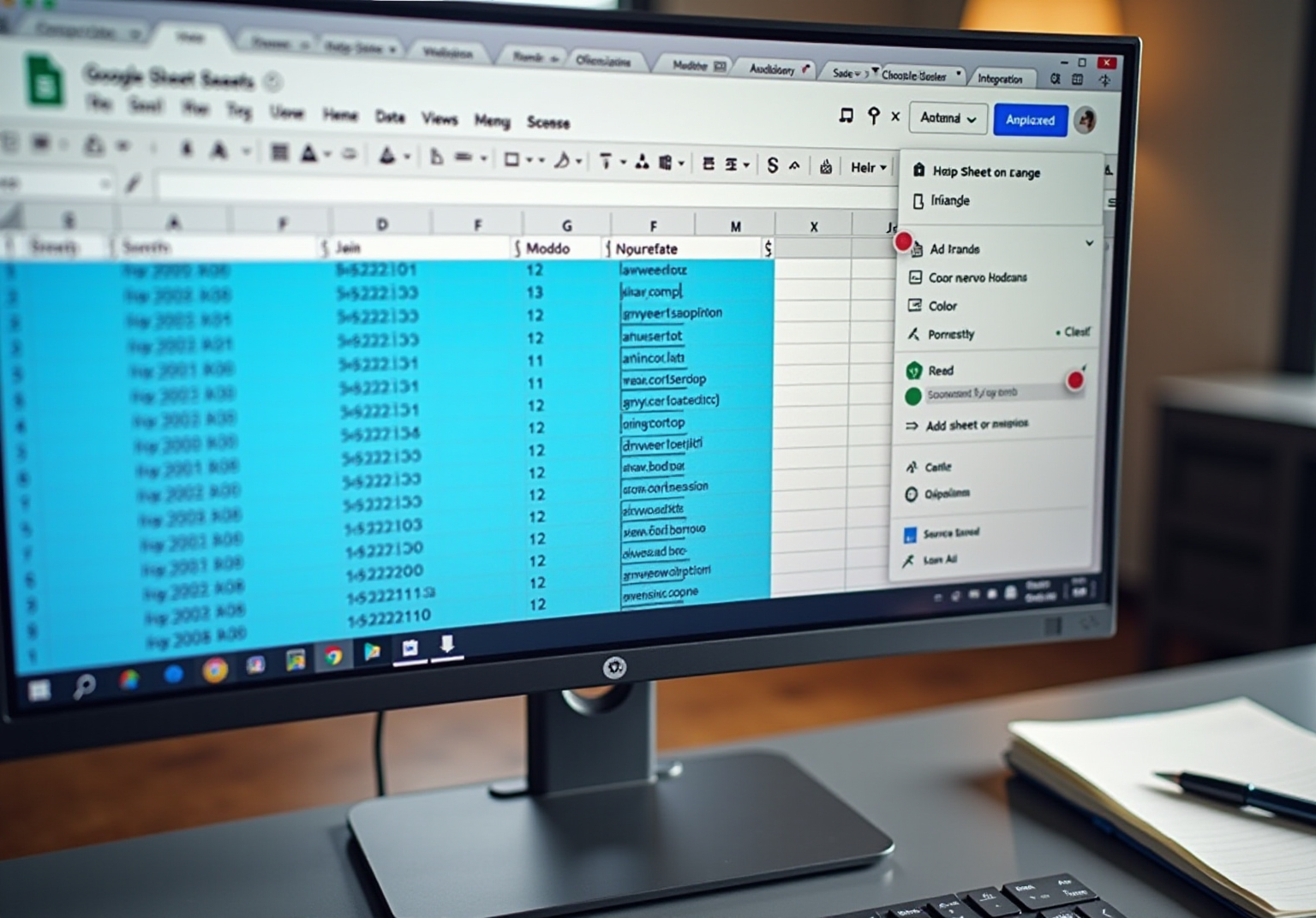
- Access 'Protect sheets and ranges' from the Data menu to open a sidebar for protection settings.
- Click 'Add a sheet or range' in the sidebar to set up protection for the selected cells.
- Setting permissions allows you to control who can edit the locked cells, with options for 'Only you' or 'Custom' for specific users.
- Add a description for the secured area to clarify its purpose for future reference.
- Click 'Done' in the sidebar to apply changes and receive a confirmation message.
- Test the protection by attempting to edit a locked cell and ensure editing is restricted.
- To modify protection settings later, return to the 'Protect sheets and ranges' option in the Data menu.
Introduction
You might be wondering, in a world where data breaches and unauthorized access can put sensitive information at risk, how can you keep your data safe? Well, the need for solid data protection has never been more important! Google Sheets is a handy tool that can help you secure your data, making sure only the right folks can tweak those essential documents. But here’s the kicker: many users don’t know the specific steps to lock down their data effectively. So, how do you navigate the ins and outs of Google Sheets to protect your valuable info while still collaborating smoothly? Let’s dive into it!
Open Your Google Sheets Document and Select Cells to Lock
- So, you’ve got Google Sheets open, and you’re ready to secure your document. Great! Let’s get started.
- First things first, head over to the specific sheet that holds the data you want to protect and find out how to lock data in Google Sheets. You know, the one with all the important stuff.
- Now, here’s where the fun begins! Click and drag your mouse to highlight the squares or range of squares you want to lock down. If you need to select multiple non-adjacent squares, just hold down the Ctrl key (or Cmd on Mac) while you click. Easy peasy, right?
- Make sure you’ve covered all the important areas that explain how to lock data in Google Sheets, especially those containing sensitive or critical information. You wouldn’t want anything getting changed accidentally, would you?

Access 'Protect Sheets and Ranges' from the Data Menu
You might be wondering how to lock data in Google Sheets to ensure your important information remains safe. Well, let’s break it down step by step! First, choose the areas you want to protect. Next, head over to the top menu bar and click on Data. From there, select [Protect sheets and areas](https://sowflow.io/blog-post/10-essential-sops-for-procurement-to-streamline-operations) from the dropdown menu. This will pop open a handy sidebar on the right side of your screen.
In that sidebar, you’ll see options to add new protections or tweak the ones you already have. Just click on [Add a sheet or range](https://sowflow.io/blog-post/10-sop-best-practices-for-operations-managers-to-enhance-efficiency) to get started with your selected cells. Now, why is this so important? Knowing how to lock data in Google Sheets is key to implementing these protection features and keeping your information intact.
Recent stats show that organizations using these features have seen a big drop in errors and unauthorized changes, which really boosts productivity. And here’s the kicker: productivity specialists say that protecting your info not only streamlines workflows but also builds a culture of responsibility within teams.
For example, companies that have embraced these protective measures often report better compliance with data management standards, leading to smoother operations overall. So, why not take a moment to explore these features? Your data deserves it!

Set Permissions for Locked Cells
You might be wondering how to set permissions for your sheets in SowFlow. Well, after you click Add a sheet or range, a new window pops up. Here, you can set permissions to make sure your group can quickly access the right guidance through SowFlow's instant documentation solution.
In the Range editing permissions section, you get to choose who can edit those selected cells. Want to keep it exclusive? Just select Only you. Or, if you want to share the love, go for Custom to allow specific users to edit. This way, you can facilitate a smooth workflow sharing experience.
If you opt for Custom, just type in the email addresses of the users you want to give editing permissions to. This ensures that only the right folks have access.
And hey, if you want to make things even clearer, you can add a description for that secured area. It’s a great way to clarify its purpose for future reference, helping with process standardization and knowledge sharing within your team.

Apply Changes and Confirm Protection Settings
You might be wondering what to do after setting those permissions. Well, it’s simple! Just click on the Done button in the sidebar to apply your changes. Once you do that, you’ll see a confirmation message pop up, letting you know that the protection has been successfully applied.
Now, to check if those cells are really locked, go ahead and try editing one of the protected cells. If everything’s set up right, you should get a notification saying that editing is restricted. Pretty straightforward, right?
If you ever need to tweak those protection settings later on, no worries! Just head back to the Protect sheets and ranges option in the Data menu, and you can make your adjustments.
Speaking of keeping things organized, have you thought about using SowFlow's free Chrome extension? With just a few clicks, you can document your workflow right from your browser. It saves everything in your group's workspace, making it super easy for everyone to access. This way, your team can quickly reference the right procedures on how to lock data in Google Sheets, boosting overall efficiency and knowledge sharing. How cool is that?
Conclusion
You might be wondering why locking data in Google Sheets is such a big deal. Well, it’s all about keeping your important information safe! By following some simple steps, you can protect sensitive data from unauthorized changes, making sure your documents stay intact and reliable.
In this article, we walked through a step-by-step guide on how to:
- Select cells to lock
- Access the protection features through the Data menu
- Set permissions for those locked cells
- Confirm the protection settings
Each of these steps not only streamlines your workflow but also encourages a culture of responsibility among your team members. And let’s be honest, who doesn’t want to boost productivity and stay compliant with data management standards?
So, taking a little time to implement these protective measures in Google Sheets doesn’t just secure your valuable information; it also helps create a more organized and efficient working environment. Embracing these best practices is key for anyone who values data integrity. So why not dive in and explore the data protection features available? You’ll be glad you did!
Frequently Asked Questions
How do I open my Google Sheets document to lock cells?
Start by opening your Google Sheets document and navigating to the specific sheet that contains the data you want to protect.
What is the first step to lock cells in Google Sheets?
The first step is to highlight the squares or range of squares you want to lock by clicking and dragging your mouse over them.
Can I lock multiple non-adjacent cells in Google Sheets?
Yes, to select multiple non-adjacent cells, hold down the Ctrl key (or Cmd key on Mac) while clicking on the cells you want to include.
Why is it important to lock certain cells in Google Sheets?
Locking cells is important to protect sensitive or critical information from being changed accidentally.
List of Sources
- Open Your Google Sheets Document and Select Cells to Lock
- How to Secure Google Sheet: Best Practices Every Team Should Follow - QR Mark Blog (https://qrmark.com/blog/how-to-secure-google-sheet)
- Google Sheets Statistics By Users, Usage(Demographics, Industry), Feature, Data Analysis, Trend and Facts (2026) (https://electroiq.com/stats/google-sheets-statistics)
- Google Workspace User Stats (2025) (https://explodingtopics.com/blog/google-workspace-stats)
- Google Sheets Statistics 2025: Mobile vs Desktop, Education Use & Advanced Features (https://sqmagazine.co.uk/google-sheets-statistics)
- Protecting sensitive data in Sheets - Google Docs Editors Community (https://support.google.com/docs/thread/336899116/protecting-sensitive-data-in-sheets?hl=en)
- Access 'Protect Sheets and Ranges' from the Data Menu
- 19 Inspirational Quotes About Data | The Pipeline | ZoomInfo (https://pipeline.zoominfo.com/operations/19-inspirational-quotes-about-data)
- Google Sheets Statistics By Users, Usage(Demographics, Industry), Feature, Data Analysis, Trend and Facts (2026) (https://electroiq.com/stats/google-sheets-statistics)
- Seven quotes to keep your data project on track (https://medium.com/decathlondigital/seven-quotes-to-keep-your-data-project-on-track-61e0acaa4cfc)
- Apply Changes and Confirm Protection Settings
- Google Sheets Statistics By Users, Usage(Demographics, Industry), Feature, Data Analysis, Trend and Facts (2026) (https://electroiq.com/stats/google-sheets-statistics)
- Google Sheets Statistics 2025: Mobile vs Desktop, Education Use & Advanced Features (https://sqmagazine.co.uk/google-sheets-statistics)
- Privacy and Security Quotes | The Data Governance Institute (https://datagovernance.com/quotes/privacy-and-security-quotes)
- Data Protection Quotes (12 quotes) (https://goodreads.com/quotes/tag/data-protection)
- Quotes on digitalisation, data protection and IT security (https://robin-data.io/en/data-protection-and-data-security-academy/news/quotes-data-protection-digitisation-it-security)
👍
What others are liking


5 Steps to outline your ideal documentation structure
5 MINS READ
Where to start the your journey of mapping out your ideal documentation structure, aligning it with the very heartbeat of your organization?
Defining a winning level of detail in your process
3 MINS READ
What is too much detail, and what is too little? This article described in that winning level detail about what detail is enough.


