
Remote Team Documentation Strategies
|
April 29, 2026
|

Master Screencast Download Video: Step-by-Step Instructions for Success
Key Highlights
- Screencasting captures screen actions with audio narration, ideal for tutorials and presentations.
- Common applications include education, software demos, and training guides, enhancing user engagement.
- Video formats for saving screencasts include MP4, AVI, and MOV, impacting compatibility and quality.
- By 2025, 80% of companies are expected to integrate screen recording into their training strategies.
- Essential tools for screencasting include reliable software (e.g., Screencast-O-Matic, OBS Studio), a web browser, stable internet, and sufficient storage space.
- Steps for downloading a screencast include logging in, locating the video, selecting it, choosing the format, and confirming the download.
- Common troubleshooting tips include checking internet connexion, browser compatibility, clearing cache, updating software, and verifying storage space.
Introduction
Screencasting has really become a game-changer for sharing information visually. It’s transforming how we do tutorials, presentations, and software demos. You might be wondering, how can you master the art of downloading screencast videos? This guide is here to help you navigate that journey, ensuring you can easily capture and share your screen content.
But let’s pause for a moment. With so many people relying on screencasting these days, what are some common hiccups that could trip you up during a download? By exploring these challenges, you’ll be better equipped to tackle the screencasting world with confidence and ease. So, let’s dive in!
Understand Screencasting Basics
Screencasting is a fantastic way to capture what’s happening on your computer screen, often with some audio narration to guide viewers along. You might be wondering why this method is so effective. Well, it’s perfect for tutorials, presentations, and software demos! Let’s break down some key concepts that’ll help you create and use screencasts like a pro.
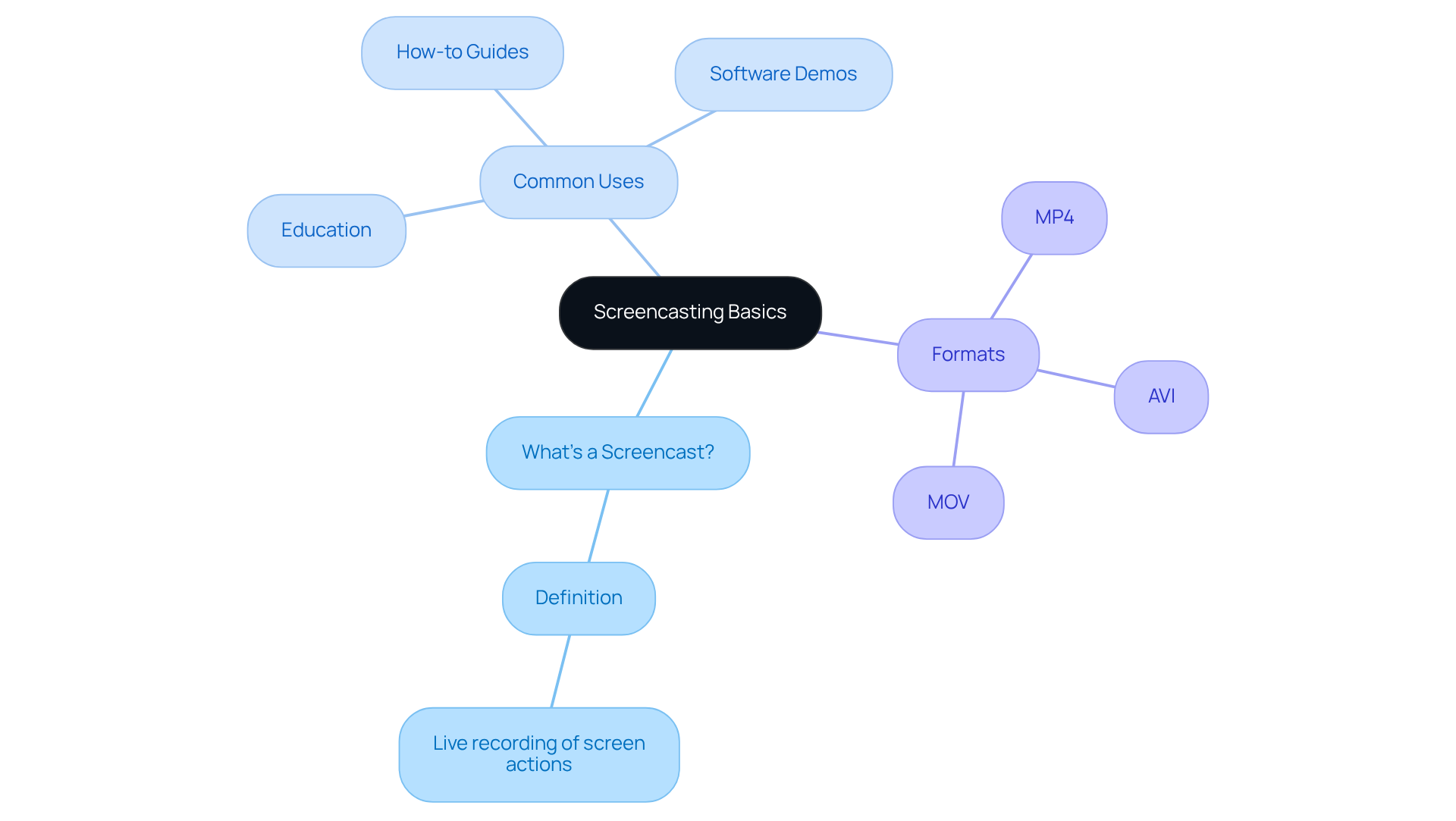
- What’s a Screencast? Think of it as a live recording of your screen actions. It lets viewers follow your processes seamlessly, making it super easy for them to learn from you.
- Common Uses: You’ll find screencasts popping up everywhere-in education, software demos, and . They’re invaluable for , helping people get up to speed quickly.
- Formats: When it comes to saving your screencasts, you’ve got options! Formats like MP4, AVI, or MOV are all on the table. The format you choose can affect how you download and use your videos, so keep compatibility and quality in mind.
Now, here’s something to think about: by 2025, around 80% of companies are expected to weave screen recording into their training and tutorial strategies. That’s a big deal! Real-world examples show how companies are using screen recording to enhance user understanding and engagement. Industry leaders are all about it, too-they say screen recording is key for creating impactful tutorials and presentations. It’s all about clear, visual communication of complex info.
So, by getting familiar with these basics, you’ll be ready to dive into the steps for the and . Ready to get started?
Gather Required Tools and Software
You might be wondering how to successfully execute a . Well, it’s all about having the right tools and software in place! Here’s what you need to get started:
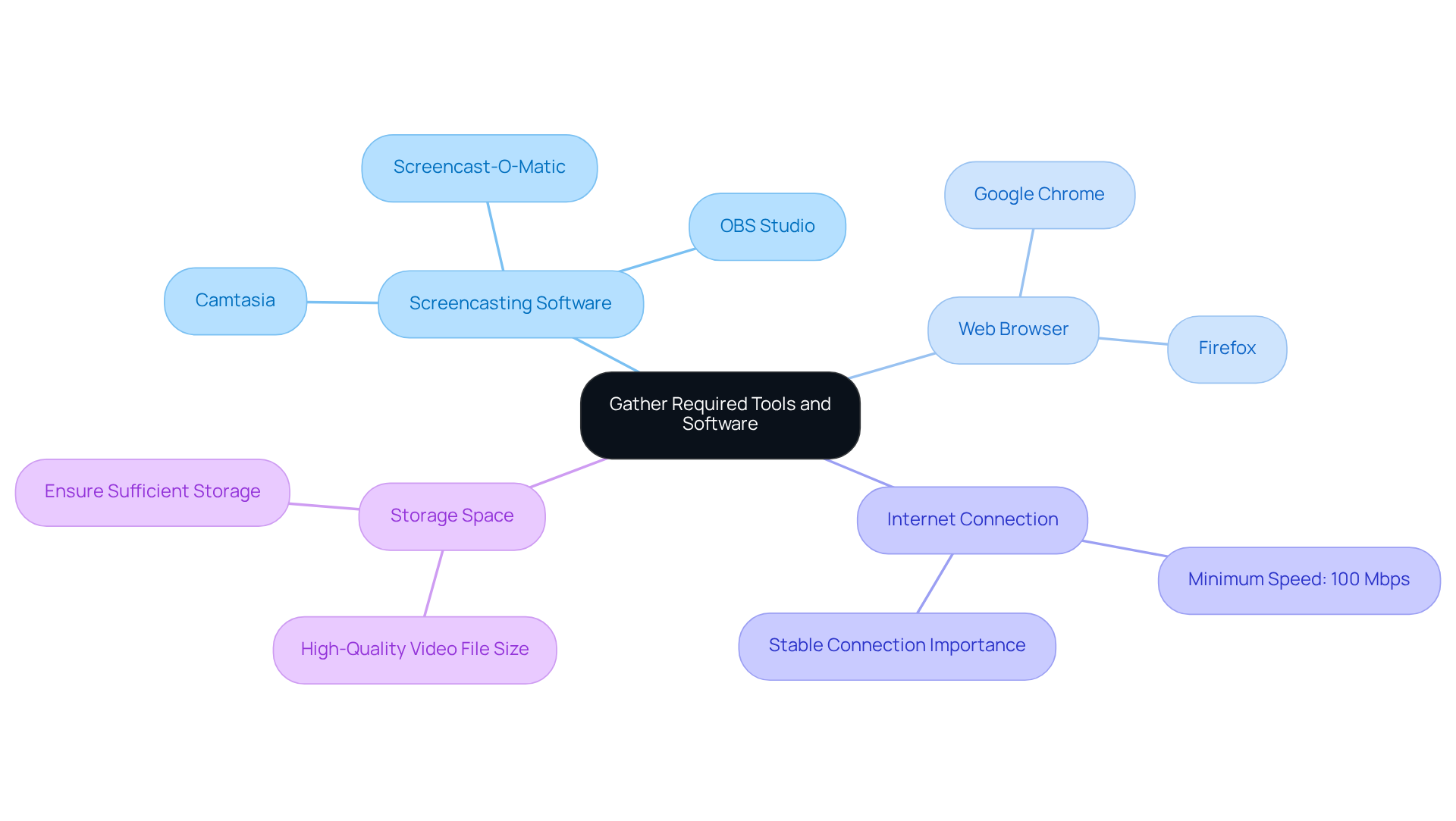
- : First off, you’ll want to pick a reliable screencasting tool. Options like Screencast-O-Matic, OBS Studio, or Camtasia are great choices. These platforms not only let you record, but they also make it super easy to download or export your recordings.
- Web Browser: Next, don’t forget about your web browser! A solid choice like Google Chrome or Firefox is essential since they often support extensions or features that help with downloads.
- Internet Connection: Now, let’s talk about your internet connection. A stable one is key for ensuring smooth . If you can, aim for speeds of at least 100 Mbps, especially if you’re working with . Did you know the ? That’s a clear sign that efficient tools are in high demand!
- : Lastly, make sure your device has enough . High-quality video files can take up a lot of room, so it’s good to be prepared.
By gathering these tools, you’ll be all set to tackle the like a pro! Remember, choosing the right tools is crucial for making your screencasting efforts as effective as possible.
Follow Step-by-Step Download Instructions
Do you want a ? No problem! Just follow these simple steps:
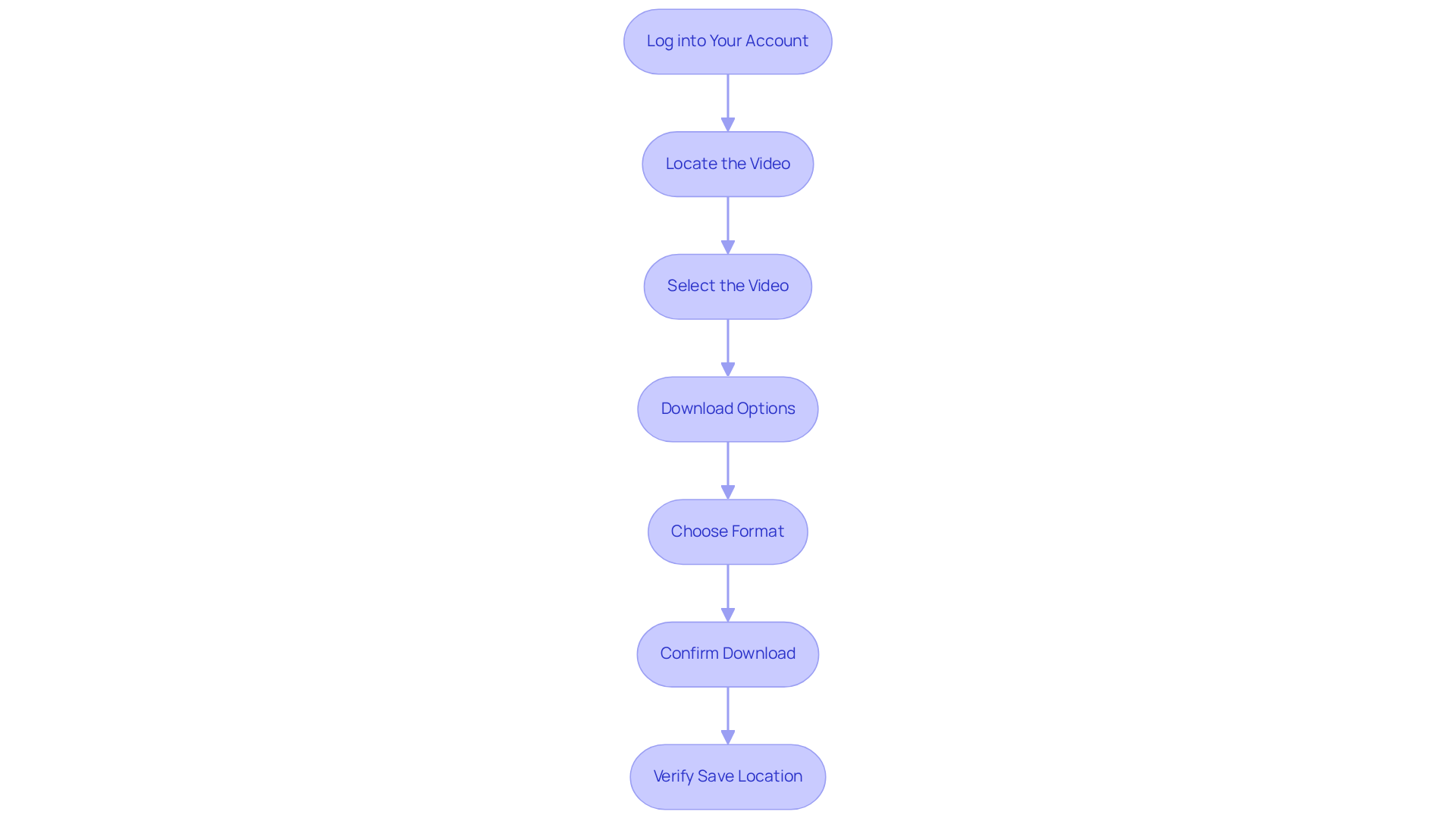
- Log into Your Account: First things first, if your recording is on a platform, log in to the account where your video is stored.
- Locate the Video: Next, head over to your library or dashboard where all your screencasts are listed. Easy peasy!
- Select the Video: Find the specific screencast you want to save and give it a click.
- : Look for a 'Download' button or something labeled 'More' or 'Export.' Click on that to see your retrieval options.
- Choose Format: If prompted, pick your preferred (like MP4). MP4 is super compatible and usually the best choice for most uses.
- Confirm Download: Hit 'Download' and just wait a moment for the file to save to your device.
- Verify Save Location: Once it’s done, check your designated folder to make sure the file saved correctly.
By following these steps, you’ll have your ready in no time! You might be thinking, "Why bother with screencasting?" Well, as Lisa Lubin puts it, "" That really highlights how powerful visual content can be! Plus, let’s be honest - most folks prefer watching videos over slogging through long texts. That’s why is key for sharing knowledge in organizations.
And here’s a little secret: with SowFlow's , your team can grab the right resources in seconds. Talk about and ! Companies that have jumped on board with these solutions have seen some serious improvements in productivity and access to information. So, why not give it a try?
Troubleshoot Common Download Issues
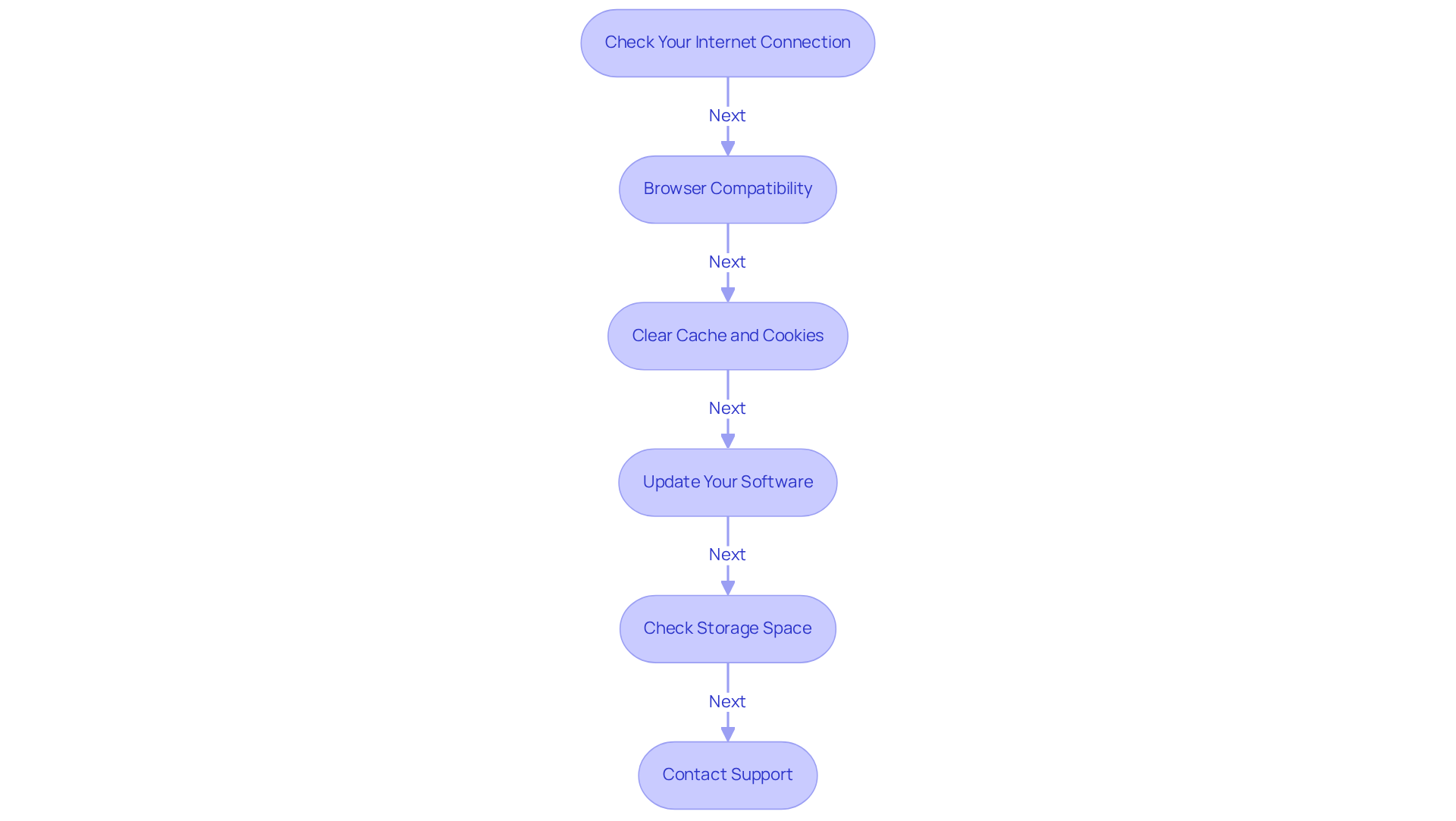
Are you having trouble with the ? Don’t worry, you’re not alone! Here are some handy to help you out:
- Check Your : First things first, make sure your is stable. A weak connection can really throw a wrench in your download plans.
- : You might want to double-check that you’re using a compatible web browser. Some browsers can be a bit picky about downloading certain file types.
- Clear Cache and Cookies: Sometimes, just clearing your browser’s cache and cookies can do wonders for those pesky download issues.
- Update Your Software: It’s a good idea to keep your and web browser up to date. This helps avoid any compatibility hiccups.
- : Don’t forget to verify that you have enough storage space on your device for the downloaded file. Running low can definitely cause problems.
- : If you’re still having trouble, reaching out to the of the ing platform can be a great next step.
By following these tips, you can tackle and resolve common issues with like a pro!
Conclusion
So, screencasting really is a fantastic way to share information visually and audibly, right? By getting the hang of creating and downloading screencasts, you can boost your ability to share knowledge - whether it’s for teaching, showing off software, or training at work. This guide has laid out all the essential steps and tools you need to create smooth screencasts and download them without a hitch.
You might be curious about what we covered in this article. We talked about:
- Picking the right screencasting software
- Making sure your internet connection is solid
- Understanding different video formats
Plus, the step-by-step instructions for downloading screencast videos make it super easy, no matter your skill level. And let’s not forget those troubleshooting tips for common download hiccups - they’ll help you tackle any bumps in the road and keep things running smoothly.
In a world where visual communication is becoming the norm, embracing screencasting can really amp up engagement and understanding. By putting these strategies into action, both individuals and organizations can tap into the perks of screencasting to enhance training and share information more effectively. So, why not take this chance to boost your communication game? Consider weaving screencasting into your workflow for presentations that truly make an impact!
Frequently Asked Questions
What is a screencast?
A screencast is a live recording of your computer screen actions, often accompanied by audio narration, allowing viewers to follow processes seamlessly.
What are common uses of screencasting?
Screencasting is commonly used in education, software demos, and how-to guides. It is especially valuable for training and onboarding, helping individuals learn quickly.
What formats can screencasts be saved in?
Screencasts can be saved in various formats, including MP4, AVI, or MOV. The choice of format can impact video quality and compatibility for downloading and usage.
How prevalent is screencasting in corporate training by 2025?
By 2025, it is expected that around 80% of companies will incorporate screen recording into their training and tutorial strategies.
Why is screen recording important for tutorials and presentations?
Screen recording is key for creating impactful tutorials and presentations as it facilitates clear, visual communication of complex information, enhancing user understanding and engagement.
List of Sources
- Understand Screencasting Basics
- Online Learning Statistics: The Ultimate List in 2025 | Devlin Peck (https://devlinpeck.com/content/online-learning-statistics)
- The Benefits of Using Screencasts to Give Students Feedback (https://edutopia.org/article/benefits-using-screencasts-give-students-feedback)
- 100+ Mind-Blowing eLearning Statistics for 2025 - Teachfloor Blog (https://teachfloor.com/blog/elearning-statistics)
- recorder.easeus.com (https://recorder.easeus.com/insights/elearning-video-consumption-statistics-and-trends.html)
- 28 Video Training Statistics: 2026 Data, Trends & Predictions | Research.com (https://research.com/education/video-training-statistics)
- Gather Required Tools and Software
- Screencast Software Market to see Huge Growth by 2025 | TechSmith, Telestream, Adobe (https://openpr.com/news/2235784/screencast-software-market-to-see-huge-growth-by-2025)
- How Much Internet Speed Do You Really Need? (https://speedtest.net/about/knowledge/how-much-speed-you-need)
- Top 10 Best Screen Recording Software for 2025: Features and Pricing (https://sowflow.io/blog-post/top-10-best-screen-recording-software-for-2025-features-and-pricing)
- Future of Screen Recording: Trends and Tools Shaping the Industry in 2025 and Beyond - SuperAGI (https://superagi.com/future-of-screen-recording-trends-and-tools-shaping-the-industry-in-2025-and-beyond)
- atlassian.com (https://atlassian.com/blog/loom/best-screen-recorder)
- Follow Step-by-Step Download Instructions
- 100 Digital Marketing Quotes to Inspire You & Your Business (https://embryo.com/blog/100-digital-marketing-quotes-to-inspire-you-and-your-business)
- 9 Quotes to Inspire Your Online Video Marketing (https://info.vidreach.io/news/9-quotes-to-inspire-your-online-video-marketing)
- 30 Screencast Onboarding Video Examples That Ensure Seamless User Activation (https://advids.co/blog/screencast-onboarding-video)
- pixelgenio.com (https://pixelgenio.com/best-video-marketing-quotes)
- 30 Expert Quotes on Content Strategy for Digital Products (https://blog.tubikstudio.com/30-expert-quotes-on-content-strategy-for-digital-products)
- Troubleshoot Common Download Issues
- Mobile App Statistics 2025: Downloads, Revenue, and More (https://sqmagazine.co.uk/mobile-app-statistics)
- State of connectivity between and within countries: Closing Broadband Connectivity Divides for All (https://oecd.org/en/publications/closing-broadband-connectivity-divides-for-all_d5ea99b2-en/full-report/state-of-connectivity-between-and-within-countries_e8df092b.html)
- appinventiv.com (https://appinventiv.com/blog/mobile-app-download-and-usage-statistics)
- Mobile App Statistics, Latest Trends & Insights for 2026 (https://itransition.com/services/application/development/mobile/statistics)
- tekrevol.com (https://tekrevol.com/blogs/mobile-app-download-statistics)
👍
What others are liking


5 Steps to outline your ideal documentation structure
5 MINS READ
Where to start the your journey of mapping out your ideal documentation structure, aligning it with the very heartbeat of your organization?
Defining a winning level of detail in your process
3 MINS READ
What is too much detail, and what is too little? This article described in that winning level detail about what detail is enough.


