


Key Highlights
- ERP (Enterprise Resource Planning) integrates various business processes into a single system for efficiency.
- Transaction Codes (T-codes) are unique identifiers for accessing specific SAP functions quickly.
- SAP is divided into modules, each dedicated to specific business areas like finance, sales, and HR.
- A client in SAP is a self-contained unit that maintains its own data and configuration.
- To log into SAP, launch the SAP Logon Pad, select the application server, enter credentials, choose logon type, and navigate to the desired module.
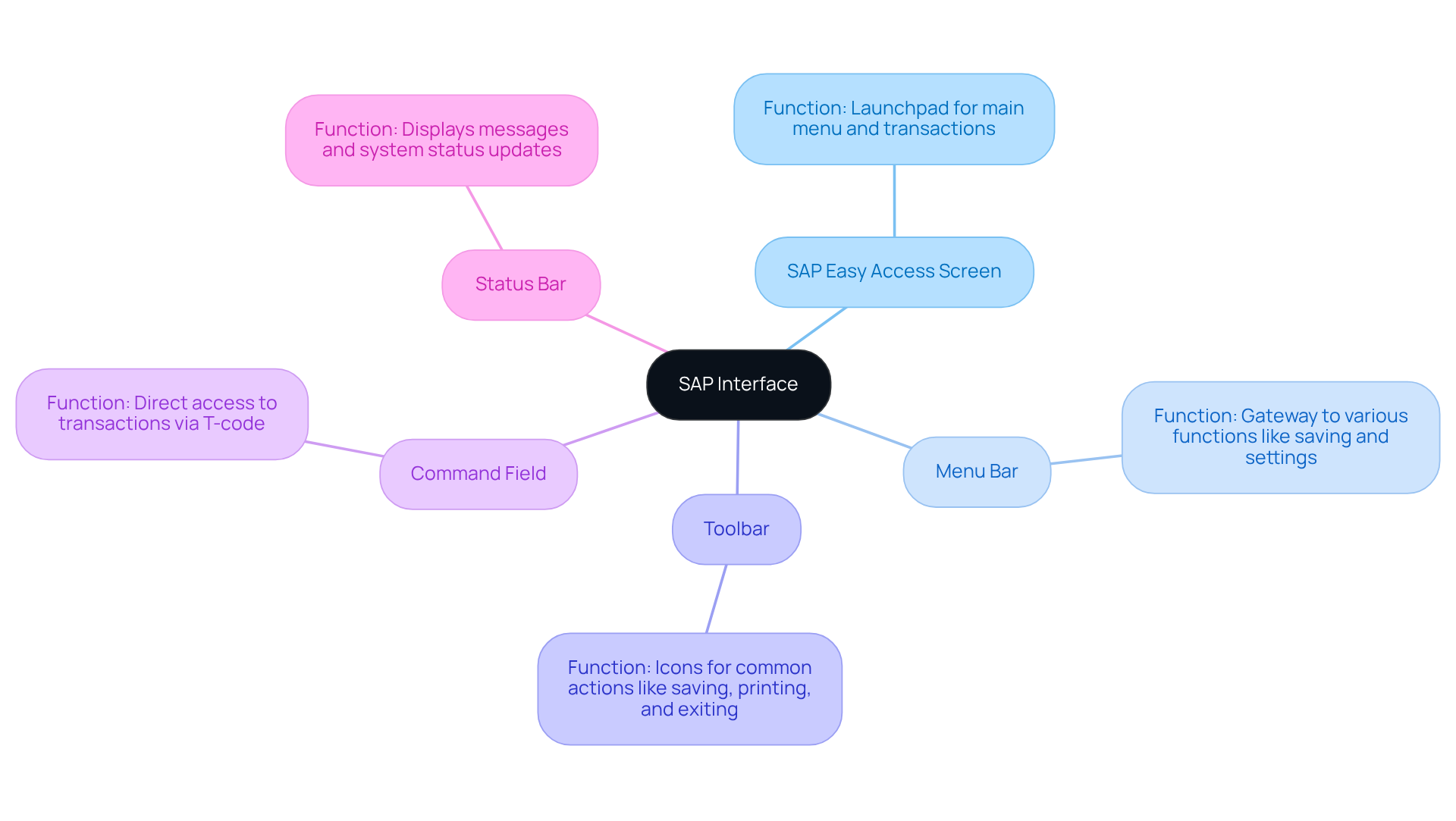
- Key components of the SAP interface include the Easy Access Screen, Menu Bar, Toolbar, Command Field, and Status Bar.
- Task management in SAP involves accessing the appropriate module, creating assignments, assigning responsibilities, generating reports, and analysing data.
- Common troubleshooting steps include checking login credentials, addressing slow performance, resolving error messages, fixing interface glitches, and clarifying navigation confusion.
Introduction
You might be wondering how to tackle the complexities of SAP. For operations managers, it can often feel like a daunting task, especially with all the functions and terminologies thrown around. But here’s the good news: mastering these essentials not only boosts efficiency but also empowers your team to tap into SAP's full potential.
What if there was a straightforward guide that could help demystify this powerful tool? Imagine having clear steps to optimize your task management and reporting. As challenges pop up, knowing how to navigate the SAP interface effectively becomes crucial for success in today’s fast-paced business world. So, let’s dive into how you can make this journey a bit easier!
Understand SAP Basics and Terminology
Navigating SAP can initially feel a bit overwhelming, don't you think? But don’t worry! A solid grasp of its fundamental concepts and terminology can make all the difference. Let’s break down some essential terms you’ll want to know:
- ERP (): Think of this as the software that brings various into one cohesive system. It’s all about and making data visible across departments.
- (T-code): Each SAP transaction has its own unique identifier, called a T-code. This little gem allows you to access specific functions quickly, making your workflows smoother.
- Module: SAP is divided into modules, each focusing on a particular business area-like finance (FI), sales (SD), or human resources (HR). This setup helps in managing processes more effectively.
- Client: In the SAP world, a client is a self-contained unit that keeps its own data and configuration. This feature allows for tailored operations that meet different business needs.
By getting familiar with these terms, you’ll boost your ability to communicate effectively while navigating SAP. This, in turn, can really . Plus, is key to optimizing workflows and ensuring you’re in line with organizational standards.
Now, speaking of efficiency, have you checked out SowFlow’s ? They’re a game changer! Your team can access and update instantly, cutting down on unnecessary meetings and allowing for quick reference to vital information. This shift in how you handle documentation can really and empower your team to tap into SAP’s full potential. So, what do you think? Ready to dive deeper into these tools?

Access and Log Into SAP System
Ready to jump into the SAP system? Let’s make it easy! Here’s how you can get started:
- Launch the : First things first, find that SAP Logon icon on your desktop and double-click it. Easy peasy, right?
- Select the : In the SAP Logon window, just double-click on the server you want to connect to. It’s like picking your favorite coffee shop!
- Enter Your Credentials: Now, it’s time to input your user ID and password in the respective fields. Make sure you’ve got them handy!
- Choose : Next up, select the that fits your needs (like dialog or remote). Once you’re set, click 'Log On' to move forward.
- Navigate to Your Desired Module: After logging in, you’ll land on the SAP Easy Access screen. From there, navigating sap will allow you to easily reach your required module using the menu or T-code.
Just a quick reminder: double-check your credentials to avoid any login hiccups. You wouldn’t want to be stuck at the door, right?

Navigate the SAP Interface and Features
Navigating the SAP interface? Let’s break it down together! Here are some key components you’ll want to get familiar with:
- : Think of this as your launchpad. It shows the main menu and your go-to transactions, making it super easy to start your journey.
- : Located at the top, this is your gateway to various functions. Need to save a file or tweak some settings? It’s all right there!
- Toolbar: This handy strip has icons for common actions like saving, printing, and exiting. Quick and efficient, just how you like it!
- : Want to jump straight to a specific transaction? Just type in the T-code here for instant access. Easy peasy!
- Status Bar: Keep an eye on this area for messages and system status updates. It’s your little helper, keeping you informed about what’s happening.
So, now that you know these elements, you’re all set for navigating SAP to enhance your skills. Ready to dive in?
Utilize SAP for Task Management and Reporting
Managing tasks and generating reports in SAP can be a breeze if you follow these simple steps:
- Access the : First things first, navigate to the right module. You can do this through the menu or just use the T-code if you’re feeling savvy.
- : Hit 'Create' and fill in the essential details. Think assignment description, who’s responsible, and when it’s due. Easy peasy!
- Assign Responsibilities: Here’s where you can delegate duties to your team. Make sure everyone knows their role-clear responsibilities make for smooth sailing.
- : Ready to create a report? Head over to the reporting section, pick your report type, and customize it. You can tweak things like the date range and activity status to get just what you need.
- Analyze Data: Once your reports are generated, take a moment to review them. Look for insights on completion rates and how efficiently things are running.
You might be wondering how this all plays out in real life. Well, take a multinational pharmaceutical firm, for example. They’ve effectively used SAP to . It’s a great testament to how these management features can really shine.
And let’s not forget about the digital transformation wave we’re riding! can take your and to the next level. By leveraging these features, you’re not just streamlining your task management processes; you’re also enhancing the accuracy of your reporting. So, why not dive in and see how it can work for you?

Troubleshoot Common SAP Navigation Issues
Navigating SAP can sometimes feel like navigating sap, right? You might run into a few bumps along the way, but don’t worry! Here are some handy to help you out:
- Login Issues: First things first, double-check that your credentials are spot on. If you’ve forgotten your password, just hit that 'Forgot Password' feature or reach out to your system admin for a hand. And hey, with SowFlow, you can whip up a to document these steps for next time!
- Slow Performance: Is your SAP running slower than a snail? Take a peek at your internet connection and maybe clear that browser cache. If it’s still dragging, it’s time to call in your IT department for backup. Plus, SowFlow lets you create resources that outline .
- Error Messages: If you see any error codes pop up, jot them down. For specific fixes, check out the SAP Help Portal or your company’s internal docs. With SowFlow, you can gather these solutions into s, so your team has quick access to what they need.
- Interface Glitches: If the interface decides to freeze on you, try refreshing the page or logging out and back in. If that doesn’t do the trick, escalate it to your IT support team. You can also use SowFlow to create a that covers common interface hiccups and their fixes.
- Navigation Confusion: Having trouble finding a specific function? Use the search feature in the SAP Easy Access screen or check your training materials for a little guidance. And don’t forget to look over any recent updates in the that might be affecting your navigation. With SowFlow’s , you can keep your materials fresh and up-to-date, giving your team the latest info for navigating SAP like pros.
By following these and tapping into SowFlow’s user guide creation features, you’ll be well-equipped to tackle common challenges in navigating SAP and boost your productivity. So, what are you waiting for? Let’s get started!

Conclusion
Mastering SAP is a key skill for operations managers who want to boost efficiency and streamline processes in their organizations. You might be wondering how understanding the basics, navigating the interface, and using task management features can really make a difference. Well, by getting a grip on these elements, managers can seriously enhance their operational capabilities and drive productivity.
Let’s break it down. First off, grasping key terms like ERP, T-codes, and modules is essential for effective communication and optimizing workflows. The article gives you a straightforward guide to accessing the SAP system, getting familiar with the interface, and leveraging SAP’s features for task management and reporting. Plus, troubleshooting common navigation issues helps ensure you can keep things running smoothly, even when challenges pop up.
Now, here’s the thing: embracing the full potential of SAP isn’t just about learning to navigate the system; it’s about transforming your operations through better task management and accurate reporting. So, why not dive deeper into what SAP can do for you? Consider checking out tools like SowFlow to enhance your documentation and streamline your processes. By doing this, you’ll create a more efficient, data-driven environment that supports your team and drives your organization toward success.
Frequently Asked Questions
What is ERP in the context of SAP?
ERP (Enterprise Resource Planning) is software that integrates various business processes into one cohesive system, enhancing efficiency and making data visible across departments.
What is a Transaction Code (T-code) in SAP?
A Transaction Code (T-code) is a unique identifier assigned to each SAP transaction, allowing users to quickly access specific functions and streamline workflows.
How is SAP organized in terms of modules?
SAP is divided into modules, each focusing on specific business areas such as finance (FI), sales (SD), or human resources (HR), which helps in managing processes more effectively.
What does a client represent in SAP?
In SAP, a client is a self-contained unit that maintains its own data and configuration, allowing for tailored operations that meet different business needs.
How can understanding SAP terminology improve operations management?
Familiarity with SAP terminology enhances communication and understanding while navigating the system, which can streamline operations management tasks and optimize workflows.
What is the first step to access the SAP system?
The first step is to launch the SAP Logon Pad by double-clicking the SAP Logon icon on your desktop.
How do you select the application server in SAP?
In the SAP Logon window, you select the application server by double-clicking on the server you want to connect to.
What information do you need to enter to log into SAP?
You need to enter your user ID and password in the respective fields to log into SAP.
What should you do after entering your credentials in SAP?
After entering your credentials, you should select the appropriate logon type (like dialog or remote) and then click 'Log On' to proceed.
How do you navigate to your desired module after logging into SAP?
After logging in, you will land on the SAP Easy Access screen, from which you can navigate to your required module using the menu or T-code.
List of Sources
- Understand SAP Basics and Terminology
- Cloud ERP Statistics for 2026 & Beyond (https://anchorgroup.tech/blog/cloud-based-erp-statistics)
- 60 Critical ERP Statistics: Market Trends, Data and Analysis (https://netsuite.com/portal/resource/articles/erp/erp-statistics.shtml)
- Case studies: SAP technologies, enabled (https://deloitte.com/ce/en/industries/technology/collections/sap-case-studies.html)
- Utilize SAP for Task Management and Reporting
- Case studies: SAP technologies, enabled (https://deloitte.com/ce/en/industries/technology/collections/sap-case-studies.html)
- Troubleshoot Common SAP Navigation Issues
- How to fix SAP login issues: A step-by-step guide | Rahul Reddy Janga posted on the topic | LinkedIn (https://linkedin.com/posts/rahulchinna_sap-sapbasis-sapconsulting-activity-7338812419487502336-FMdG)
👍
What others are liking


5 Steps to outline your ideal documentation structure
5 MINS READ
Where to start the your journey of mapping out your ideal documentation structure, aligning it with the very heartbeat of your organization?
Defining a winning level of detail in your process
3 MINS READ
What is too much detail, and what is too little? This article described in that winning level detail about what detail is enough.


