


Key Highlights
- To capture a screenshot on Windows, use Snipping Tool with
Windows + Shift + SorPrint Screenfor the entire screen. - On Mac, press
Command + Shift + 3for a full screenshot orCommand + Shift + 4for a selected area. - For iOS devices, press
Side Button + Volume Up; for Android, pressPower + Volume Downto take a screenshot. - Free annotation tools include Markup Hero and Greenshot; paid options are Snagit, Lightshot, and Droplr.
- Windows Snipping Tool and Mac Preview are built-in options for basic annotations.
- Steps to annotate a screenshot: open the image, select tools, add text and shapes, and save in PNG or JPEG format.
- Common issues include tools not responding, annotations not saving, overlapping markups, and poor screenshot quality.
- Troubleshooting tips involve checking software updates, ensuring storage space, using layering features, and capturing at higher resolutions.
- Organising annotated screenshots can enhance retrieval and management, improving documentation efficiency.
Introduction
You might be wondering how capturing and annotating screenshots has become such a crucial skill in our digital world. It really enhances clarity and understanding, whether you're collaborating with your team or helping a customer out. This guide is here to make things easy for you! We’ll walk through the process of mastering screenshot annotation in just four simple steps.
But hey, as technology keeps evolving, so do the tools and techniques for effective annotation. What challenges might you face when trying to convey complex information visually? And more importantly, how can you tackle those hurdles? Let’s dive into it!
Capture a Screenshot on Your Device
Are you ready to learn ? First things first, you need to take one! Let’s break down how to do this on :
On Windows:
- Using Snipping Tool: Just hit
Windows + Shift + Sto open the Snipping Tool. Then, select the area you want to capture. - Using Print Screen: Press the
Print Screenkey to snap a picture of your entire screen. You can easily paste it into an or document withCtrl + V.
On Mac:
- Full Screen: Want the whole screen? Press
Command + Shift + 3to grab it all. - Selected Area: If you only need a part of the screen, press
Command + Shift + 4, then click and drag to choose your area.
On Mobile Devices:
- iOS: For iPhones, press the
Side Button + Volume Upat the same time to capture your screen. - Android: On Android devices, press the
Power + Volume Downbuttons together.
Once you’ve got your , it’ll be saved in your device’s gallery or desktop, ready for you to learn with your comments and annotations. So, what are you waiting for? Go ahead and give it a try!

Choose the Right Annotation Tool
Choosing the right tool for is super important for keeping your workflow smooth. You might be wondering what options are out there, so let’s break it down by pricing and functionality.
Free Tools:
- Markup Hero: This web-based gem makes with features like text, arrows, and shapes. It’s perfect for quick feedback when you need to get things done fast.
- Greenshot: A straightforward screenshot app that’s all about simplicity. If you like an uncomplicated approach, this one’s for you!
Paid Tools:
- Snagit: If you’re looking for something professional, Snagit is the way to go. It’s packed with like video capture and extensive editing options, making it ideal for detailed documentation and training materials.
- Lightshot: Known for its ease of use, this tool lets you mark up your screenshots quickly and share them effortlessly. It’s perfect for those who want results without the fuss.
- Droplr: If speed and are your priorities, Droplr has got you covered. It really helps streamline the commenting process for teams.
Built-in Tools:
- Windows Snipping Tool: This handy tool comes pre-installed on Windows and offers basic annotation features. It’s great for those occasional needs.
- Preview on Mac: Mac users can take advantage of this built-in app to annotate screenshots with text, shapes, and highlights. It’s a convenient option!
When you’re picking a tool, consider based on your to ensure a smooth labeling experience. As Erin Gilliam Haije points out, improving customer experiences through can really boost satisfaction. Did you know that 80% of consumers might leave a company after a few disappointing experiences? Plus, , which means all around!

Add Annotations to Your Screenshot
Want to learn like a pro? Let’s break it down into some easy steps:
- Open the Screenshot: Fire up your favorite annotation app and load that screenshot you just took.
- Select Annotation Tools: Check out the toolbar for handy tools like text boxes, arrows, shapes, and highlights. If you’re looking for recommendations, - they’re user-friendly and packed with features.
-
- Text: Click on the text tool, then pick the spot on your screenshot where you want to add your message. Keep it clear and to the point!
- Arrows and Shapes: Use arrows to point out specific areas and draw shapes to highlight important sections.
- Highlights: Don’t forget to use the highlight tool to make key info pop!
- Save Your Work: Once you’re done, save that annotated screenshot in your favorite format, like PNG or JPEG.
Now, here’s a tip: and . Organizations that practice often see better communication and fewer misunderstandings - especially in . Annotated visuals can really For example, teams have found that using leads to quicker solutions for client issues. And remember, always hide any sensitive info in your annotations to keep personal data safe. By following these steps on , you will clarify your documentation and help your team understand things better!

Troubleshoot Common Annotation Issues
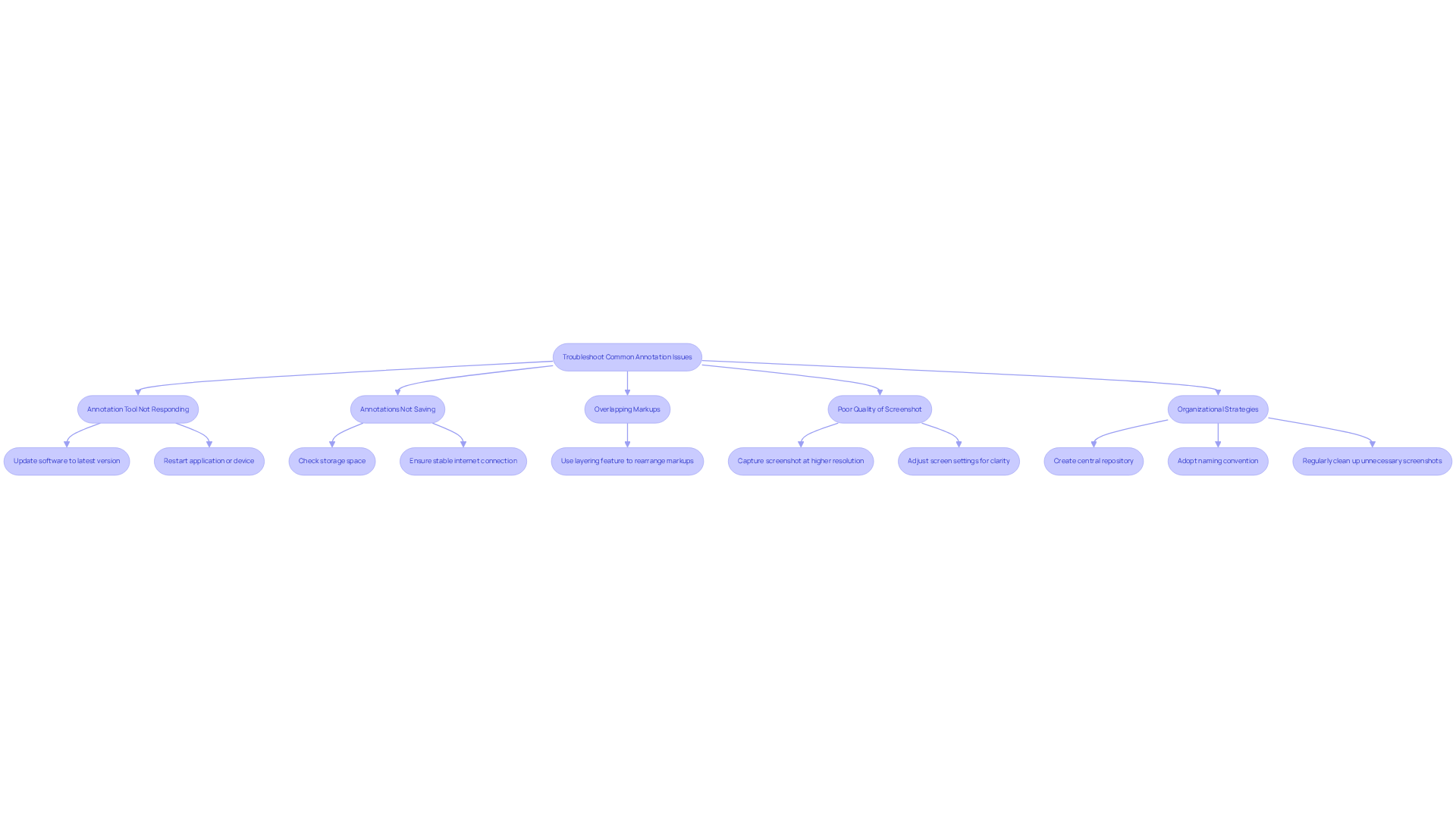
Even with the most advanced equipment, you might encounter some common challenges regarding . But don’t worry! Here are some to help you troubleshoot those pesky issues:
- Annotation Tool Not Responding: First things first, make sure your software is updated to the latest version. If you’re still having trouble, try restarting the application or even your device to give everything a fresh start.
- Annotations Not Saving: Check if you have enough storage space on your device. If you’re using web-based tools, a stable internet connection is key to saving your work.
- Overlapping Markups: If your markups are overlapping, use the - if it’s available - to rearrange them. Keeping your remarks organized can really help prevent confusion and make everything clearer.
- Poor Quality of Screenshot: If your screenshot looks blurry, consider capturing it again at a or tweaking your screen settings for better clarity.
Now, let’s talk about some organizational strategies for your . Creating a , adopting a naming convention, and regularly cleaning up unnecessary screenshots can make it so much easier to retrieve and manage your .
By applying these , you can really enhance your labeling process and understand for . As highlighted in the case study on "Troubleshooting and Support," clear can speed up problem resolution, making customer support interactions more efficient. Tools like Screen Canvas, which lets you draw directly on any web page and add custom annotations, can further elevate your annotation experience. So, why not give it a try?
Conclusion
Mastering the art of annotating a screenshot can really boost your communication and clarity, whether you're at home or in the office. You might be wondering how to get started. Well, by following a few simple steps - like capturing the screenshot, picking the right annotation tool, adding your notes effectively, and troubleshooting any hiccups - you can create visuals that are not just clear but also super helpful for understanding and collaboration.
Now, let’s talk tools. Choosing the right ones, whether they’re free or paid, is key to fitting your specific needs and workflow. There are some handy techniques for adding annotations, like using text, arrows, and highlights. Plus, I’ll share some solutions for those pesky problems that can pop up during the annotation process. These tips not only make your annotation experience smoother but also ramp up your productivity and communication effectiveness.
In a time when visual documentation is essential for sharing information, being able to annotate screenshots well is a game changer. Embracing these strategies can lead to better customer support interactions, clearer team communications, and improved documentation practices. Whether you’re troubleshooting, giving feedback, or teaching someone something new, mastering screenshot annotations is a skill that can really elevate your workflow. So, why not start implementing these practices today? You’ll be amazed at the difference in clarity and efficiency!
Frequently Asked Questions
How can I take a screenshot on a Windows device?
You can take a screenshot on a Windows device using two methods: 1. Using the Snipping Tool by pressing Windows + Shift + S to open it and then selecting the area you want to capture. 2. Pressing the Print Screen key to capture the entire screen, which you can then paste into an image editor or document using Ctrl + V.
What are the methods to capture a screenshot on a Mac?
On a Mac, you can capture a screenshot in two ways: 1. To capture the entire screen, press Command + Shift + 3. 2. To capture a selected area, press Command + Shift + 4, then click and drag to choose the area you want to capture.
How do I take a screenshot on an iOS device?
To take a screenshot on an iPhone, press the Side Button and the Volume Up button at the same time.
What is the process for capturing a screenshot on an Android device?
On Android devices, press the Power button and the Volume Down button together to take a screenshot.
Where are my screenshots saved after capturing them?
Your screenshots will be saved in your device’s gallery or desktop, depending on the device you are using.
List of Sources
- Choose the Right Annotation Tool
- Top 10 Website Annotation Tools | Mopinion Feedback (https://mopinion.com/top-10-website-annotation-tools)
- Best 15 Image Annotation Tools in 2026 (https://bugherd.com/blog/best-15-image-annotation-tools-in-2026)
- 10 Best Screenshot Tools for Windows, Mac & Web (2026) | Supademo Blog (https://supademo.com/blog/screenshot-tools)
- The Best Online Annotation Software in 2026 (https://picflow.com/blog/best-annotation-tools)
- Add Annotations to Your Screenshot
- europeanbusinessreview.com (https://europeanbusinessreview.com/how-to-annotate-images-and-make-screenshots-more-effective-for-clearer-communication)
- Add Annotations to Screenshot (https://evernote.com/image-annotation/add-annotations-to-screenshot)
- Capture Screenshots Like a Pro: Save Annotated Findings (https://screencanvas.co/blog/capture-screenshots-like-a-pro-save-annotated-findings)
- What is the most efficient way to add annotations (arrows, etc.) to screenshots in Word? - Microsoft Q&A (https://learn.microsoft.com/en-us/answers/questions/5383269/what-is-the-most-efficient-way-to-add-annotations)
- Troubleshoot Common Annotation Issues
- Capture Screenshots Like a Pro: Save Annotated Findings (https://screencanvas.co/blog/capture-screenshots-like-a-pro-save-annotated-findings)
- Screenshots For Troubleshooting (App Note) | LabJack Public Support Documentation (https://support.labjack.com/docs/screenshots-for-troubleshooting-app-note)
👍
What others are liking


5 Steps to outline your ideal documentation structure
5 MINS READ
Where to start the your journey of mapping out your ideal documentation structure, aligning it with the very heartbeat of your organization?
Defining a winning level of detail in your process
3 MINS READ
What is too much detail, and what is too little? This article described in that winning level detail about what detail is enough.


