
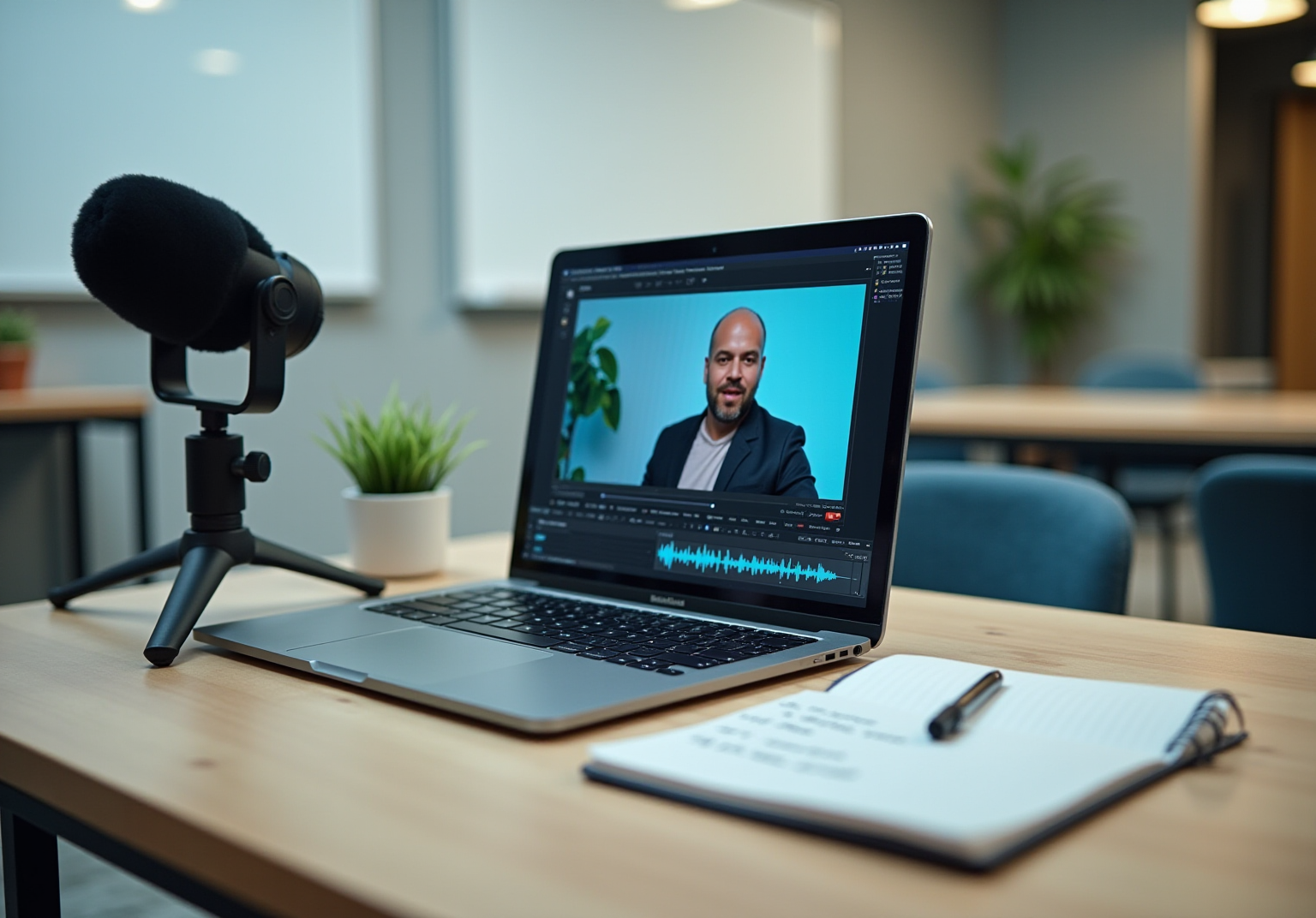

Key Highlights
- Identify your recording needs based on the purpose, such as tutorials or meetings, to choose suitable features.
- Understand your audience to tailor content effectively, enhancing engagement.
- Key features for Chrome screen recording plugins include tab-specific recording, audio options, editing tools, and easy sharing.
- Instal a chosen screen recorder from the Chrome Web Store and configure settings for video quality and audio input.
- Conduct a test recording to ensure functionality and performance of the screen recorder.
- Effective recording techniques include planning content, keeping videos concise (3-5 minutes), ensuring clear audio, using visual cues, and maintaining a tidy display.
- Edit recordings by trimming unnecessary content, adding annotations, and adjusting audio levels for clarity.
- Export videos in suitable formats (like MP4) and resolutions for compatibility across devices.
- Share recordings via platforms like YouTube, cloud storage, or embed them in documents, while ensuring compliance with privacy laws.
Introduction
Mastering the art of screen recording can really change the way we share and communicate information in our digital world. You might be wondering how to get started, right? With the right Chrome plugins, you can whip up engaging tutorials, capture those crucial meetings, or document processes without breaking a sweat. But here’s the catch: navigating through all the tools and techniques out there can feel a bit overwhelming.
So, what are the best practices that can take your screen recording from just a simple task to something that looks professional? Let's explore this together!
Identify Your Recording Needs and Plugin Features
Before you hit that record button, let’s take a moment to think about what you really need from your video capture. You might be wondering, what’s the purpose of your recording? Are you whipping up tutorials, capturing important meetings, or maybe ? Each of these has its own set of features that could make your life a lot easier.
Next up, who’s going to be watching these videos? Knowing your audience can really shape how you present your content. It’s all about connecting with them, right?
Now, let’s talk about those . Have you checked out what they can do? Look for features like:
- , whether it’s system audio or your microphone
By , you’ll set yourself up for success. Your recordings will not only be effective but will also hit the mark for their intended purpose.

Install and Configure Your Chrome Screen Recorder
Ready to start using screen recording like a pro? Let’s walk through the steps to install and set up your Chrome :
- Choose a by selecting a that fits your needs. You might want to check out Loom, Screencastify, or Nimbus.
- Install the : Head over to the , search for your chosen tool, and hit 'Add to Chrome'. Easy peasy!
- Grant Permissions: After you install the chrome plugin record screen, you’ll likely need to give it access to your display and microphone. Fun fact: , which can mess with user consent rates.
- Configure Settings by using the chrome plugin record screen to open up the extension and tweak the settings to your liking. You’ll want to consider:
- (resolution and frame rate)
- Audio input sources (microphone and system audio)
- Recording area (full screen, specific tab, or application window)
- Test the Setup: Don’t skip this step! Do a to make sure everything’s working smoothly, including audio levels and video clarity. This is super important since around 60% of extensions haven’t been updated in the last year, which can really affect performance.
By following these steps, you’ll set yourself up for a seamless recording experience, making your a breeze. And hey, have you thought about using ? It lets you document your workflows in just a few clicks, saving everything right in your team’s workspace for easy access. Organizations that have embraced capture tools, along with SowFlow's documentation features, have seen a boost in training efficiency and shorter . Pretty cool, right? So, why not give it a shot?

Utilize Effective Recording Techniques for Optimal Results
Are you looking to create with a ? You might be wondering how to make yours stand out. Here are some techniques to consider:
- Plan Your Content: Before you hit that record button, outline the key points you want to cover. This little prep work helps keep you focused and ensures you don’t miss anything important. Did you know that the first few seconds of your video are crucial for keeping viewers around? Research shows that 1 in 5 people leave within the first 10 seconds of landing on a page. So, having a solid plan is key to grabbing and holding onto your audience’s interest.
- Keep It Concise: Let’s talk brevity. and easier for folks to digest. In fact, studies indicate that about 1/3 of viewers bail within the first 30 seconds. That’s a strong nudge to keep your content concise and to the point!
- Use Clear Audio: ! Speak at a moderate pace and ensure your sound quality is top-notch. Research suggests that and even how they perceive your content. Investing in a quality microphone can make a world of difference in how effectively you communicate your message.
- Incorporate Visual Cues: Want to keep your audience engaged? Use annotations, highlights, or cursor effects to draw attention to key areas on the screen. Engaging visuals can really help maintain interest and boost understanding.
- Keep a Tidy Display: Before you start recording, close any unnecessary tabs and programs. A clutter-free screen helps your audience focus on what you’re presenting without distractions.
By adopting these methods, you can significantly enhance the quality of your recordings with a . not only boost audience retention but also reflect professionalism and attention to detail. As Mark West puts it, "They indicate professionalism and attention to detail, which can enhance your brand’s credibility." So, why not give these tips a try and see how they work for you?

Edit and Share Your Recordings Efficiently
Once you’ve wrapped up your screen recording, let’s dive into how to edit and share your content effectively:
-
Edit Your Recording: You might be wondering how to make your video shine. Use the built-in in your screen recorder or grab some external software to:
- Trim out those unnecessary bits to keep your viewers engaged. Did you know that people retain 95% of messages while watching a video, compared to just 10% when reading text? That’s a big deal!
- Add annotations or captions to highlight key points. It really helps clarify things for your audience.
- Adjust so everything sounds crystal clear. You want to make sure every voice is heard easily.
-
Export the Final Product: Now, let’s talk about exporting. Choose the right , like MP4, and pick a resolution that fits your audience’s needs. You want to ensure it works smoothly across all devices.
-
Choose Sharing Platforms: How are you planning to ? Here are some options:
- Upload to popular like YouTube or Vimeo for a wider reach.
- Share via like Google Drive or Dropbox for easy access.
- Embed audio clips directly into your documents or presentations to add some context.
-
Gather Feedback: Don’t forget to ask your viewers for their thoughts! Their feedback is super valuable for refining your future content and making sure it hits the mark. Plus, with the market for valued at USD 1.6 billion in 2024, it’s clear that these practices are becoming essential in today’s business world.
By following these best practices, you can create high-quality audio that’s not just accessible but also engaging for your audience. And remember, when sharing recordings, stay compliant with privacy laws like GDPR to avoid any potential pitfalls.

Conclusion
You might be wondering how mastering screen recording with Chrome plugins can really boost your productivity and communication. Well, it’s all about understanding what you need and picking the right tools. With the right approach, you can create videos that are not just informative but also engaging! Start by figuring out the purpose of your recordings and who your audience is. Make sure the plugin you choose has all the features you need to hit those goals.
Throughout this article, we’ve covered the essential steps for installation, configuration, and effective recording techniques. Remember, planning your content is key! Keeping your audio clear and using visual cues can really help keep your viewers engaged. And don’t forget about editing and sharing - quality matters, and so does respecting privacy standards.
So, why not embrace these best practices in screen recording? They can really elevate how you communicate within your team and enhance the learning experience for your viewers. By leveraging the right tools and techniques, you can make sure your recordings are impactful and resonate with your audience. Whether you’re creating tutorials, hosting meetings, or documenting processes, effective screen recording can lead to improved efficiency and a more professional presentation of your ideas. Now, let’s dive into how you can start implementing these tips today!
Frequently Asked Questions
What should I consider before starting a video recording?
Before recording, consider the purpose of your recording, such as whether you are creating tutorials, capturing meetings, or documenting processes.
Why is it important to know my audience when creating video content?
Knowing your audience helps shape how you present your content, allowing you to connect with them more effectively.
What features should I look for in a screen recording Chrome plugin?
Look for features such as the ability to record specific tabs or the whole screen, options for audio recording (system audio or microphone), editing tools for post-recording adjustments, and easy sharing options for distributing your videos.
How can matching my recording needs with plugin features benefit me?
By aligning your recording needs with the right plugin features, you ensure your recordings are effective and meet their intended purpose.
List of Sources
- Identify Your Recording Needs and Plugin Features
- Screen Recording Software Market Size, Industry Share, Forecast to 2026-2034 (https://fortunebusinessinsights.com/screen-recording-software-market-107056)
- Global Screen Recording Software Market Industry Best Practices 2026-2033 (https://statsndata.org/report/screen-recording-software-market-339139)
- 2023 Screen-Recording Software Market Growth Trends (https://unfoldlabs.medium.com/2023-screen-recording-software-market-growth-trends-105ddf9002ee)
- Top Content on LinkedIn (https://linkedin.com/pulse/screen-recorder-research-report-industry-development-9qxce)
- Screen Recording Statistics 2026 — 60+ Market, Usage & Training Data (https://streamrecorder.io/research/screen-recording-statistics)
- Install and Configure Your Chrome Screen Recorder
- Chrome Extension Statistics: Data From 2024 | DebugBear (https://debugbear.com/blog/chrome-extension-statistics)
- How to Use a Screen Recorder Chrome Extension: Your Friendly Step-by-Step Guide (https://sowflow.io/blog-post/how-to-use-a-screen-recorder-chrome-extension-your-friendly-step-by-step-guide)
- Chrome Permissions Statistics 2026 (https://aboutchromebooks.com/chrome-permissions-statistics)
- Chrome Screen Recorder: The Practical Guide (and When to Use StreamYard Instead) (https://streamyard.com/blog/chrome-screen-recorder-streamyard-vs-extensions)
- 18 Best Screen Recording & Sharing Chrome extensions & Tools (2026 List) | Chrome-Stats (https://chrome-stats.com/keyword/screen_recording_sharing/screen_caster)
- Utilize Effective Recording Techniques for Optimal Results
- WeRank - The Impact of Video Length on Viewer Engagement: What the Data Says (https://werankagency.com/the-impact-of-video-length-on-viewer-engagement-what-the-data-says)
- The Impact of Video Quality on Viewer Engagement - SceneFactory (https://scenefactory.tv/blog/marketing/the-impact-of-video-quality-on-viewer-engagement)
- Video Length Stats: How Long Should Your Video Be? | Embryo (https://embryo.com/blog/video-length-stats)
- Effects of audio quality on retention and viewer perception in online educational video (https://ttu-ir.tdl.org/items/1090801b-6b31-493a-a091-fcd4e04307a6)
- How Audio Quality Affects Viewer Retention (https://linkedin.com/top-content/productivity/importance-of-quality-content/how-audio-quality-affects-viewer-retention)
- Edit and Share Your Recordings Efficiently
- Screen Recording Software Market Size, Industry Share, Forecast to 2026-2034 (https://fortunebusinessinsights.com/screen-recording-software-market-107056)
- 2023 Screen-Recording Software Market Growth Trends (https://unfoldlabs.medium.com/2023-screen-recording-software-market-growth-trends-105ddf9002ee)
- Screen Recording Software Market Size, Growth, Share, & Analysis Report - 2033 (https://datahorizzonresearch.com/screen-recording-software-market-38992)
- Top 50 Filmmaking Quotes to Inspire - Indie Film Hustle (https://indiefilmhustle.com/filmmaking-quotes)
- 73 of the Best Quotes About Filmmaking — FILM CRUX (https://filmcrux.com/blog/best-filmmaking-quotes)
👍
What others are liking


5 Steps to outline your ideal documentation structure
5 MINS READ
Where to start the your journey of mapping out your ideal documentation structure, aligning it with the very heartbeat of your organization?
Defining a winning level of detail in your process
3 MINS READ
What is too much detail, and what is too little? This article described in that winning level detail about what detail is enough.


