
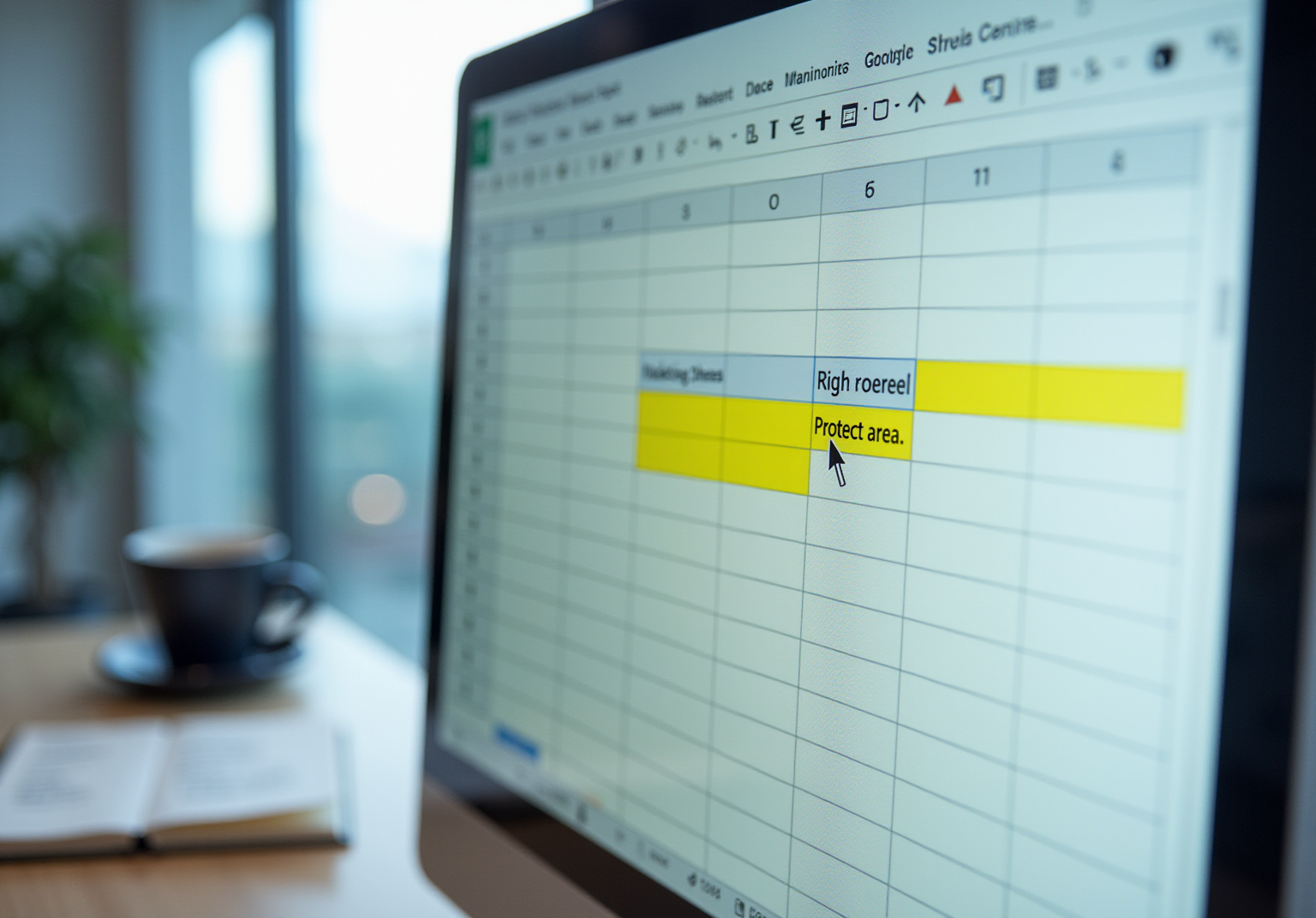

Key Highlights
- To lock cells in Google Sheets, select the desired cells and right-click to choose 'Protect area' or use the 'Data' menu.
- In 2025, 87% of Google Sheets users engaged in collaboration, highlighting the need for data protection.
- 61% of users frequently utilise the 'Protect selection' feature to maintain data integrity and control access.
- Permissions can be set to restrict editing to specific users, ensuring secure access management.
- 66% of secondary and high schools and 54% of remote teams use Sheets for critical tasks, emphasising the need for secure data management.
- Common issues with cell locking include incorrect range selection and insufficient permissions; users should verify their access levels.
- Refreshing the page or clearing the browser's cache can resolve visibility issues with the 'Protect range' option.
Introduction
You might be wondering why locking values in Google Sheets is such a big deal these days. Well, as more and more businesses jump on the collaboration bandwagon, it’s become super important to keep your vital information safe from unwanted edits. With a huge chunk of companies using Google Sheets for real-time teamwork, knowing how to protect your data is key.
But let’s be honest - figuring out how to lock those cells can feel a bit overwhelming. What if things don’t work out as planned, or permissions get all mixed up? Don’t worry! This guide is here to walk you through the steps of securing your data, making sure only the right folks can tweak those critical bits of information while you keep the collaboration flowing smoothly.
Select Cells to Lock
- Open up your Google Sheets document.
- Now, you might be wondering how to for those important cells. Just click and drag your mouse to highlight the cell or range of cells you want to protect. If you want to be super precise, hold down the Shift key while using the arrow keys.
- Make sure all the selected cells are filled with valuable info that you really want to keep safe from any unwanted edits.
Speaking of keeping things safe, did you know that in 2025, a whopping ? That really shows how crucial it is to safeguard the info that matters. And with , is a must! You want to ensure that only the right people can make changes by understanding how to . As Sheryl Sandberg wisely said, 'Done is better than perfect.' It’s a great reminder to take those actionable steps to keep your information intact in collaborative spaces.
Plus, check this out: studies reveal that . That just goes to show how widely it's adopted for managing and protecting data!

Access Protection Settings
- So, you want to know ? Start by selecting the ones you wish to keep safe, which is essential when learning .
- Next, just right-click on that highlighted area and choose 'Protect area' from the menu that pops up, which is a step in learning . If you prefer, you can also head to the top menu, click on 'Data', and find out by selecting ''.
- A handy sidebar will show up on the right side of your screen, guiding you on by letting you for those selected cells.
You might be wondering why this matters. Well, how important it is to . Did you know that 61% of users rely on the '' feature regularly? This feature not only helps but also allows for , making sure that only the right people can make changes.
Now, will tell you that while protecting areas is super important, it shouldn’t be your only line of defense. It’s crucial to share those protected spreadsheets only with trusted folks to avoid any unauthorized access. Plus, you can set it up to show a warning when someone tries to modify that area. This little feature can really help prevent accidental changes and keep your workflows running smoothly.

Set Permissions for Locked Cells
You might be wondering how to manage access in the protection sidebar. Well, it’s simple! Just select '' to get started. From there, you can choose your . If you pick 'Only you,' only you can edit. But if you go with 'Custom,' you can specify exactly who can edit the range. Once you’ve set everything up, just click 'Done' to wrap it up.
Now, let’s talk about why this matters. Did you know that:
- 66% of secondary and high schools use Sheets for grading?
- 54% of remote and hybrid teams rely on Google Sheets for project tracking?
That really highlights the need for . So, is crucial for keeping information safe and ensuring smooth collaboration. As one put it, " is key to ensuring that sensitive data remains secure while allowing teams to ."
And here’s something to think about: 30% of people run into access-related issues when trying to secure sections. That just goes to show how important it is to regularly . So, keep that in mind as you navigate your own !

Troubleshoot Locking Issues
- You might be wondering why some cells are still editable even after you’ve set protection. First things first, double-check that you’ve selected the right range and that your permissions are set up correctly. Did you know that over 60% of folks use the ? It really shows how crucial it is for keeping your data safe! As Mohammed Shafin Arshad points out, "If you can’t see the option, it’s likely because you’re only a viewer or commenter."
- Now, let’s make sure you’re logged into the right Google account with the you need. Only users with Editor access can protect sections; if you’re just a viewer or commenter, you won’t have that ability.
- If you can’t spot the '' option, try refreshing the page or clearing your browser’s cache. Sometimes, browser hiccups like cached data or pesky extensions can hide this feature from view.
- Still having trouble? No worries! Check out the or for more help. Many users have faced similar issues, and the community can offer some great insights. As Shivani Jain mentions, "the Docs application makes it easy to your documents with others using the Sharing Dropdown feature.

Conclusion
You might be wondering why locking values in Google Sheets is such a big deal. Well, it’s all about keeping your data safe and sound! By following the simple steps in this guide, you can protect your important information from unwanted edits. This way, only the folks you trust can make changes, which not only boosts your data security but also helps create a more organized and efficient workspace for everyone involved.
Throughout this article, we’ve chatted about the key aspects of locking cells - like how to select the right ranges, access protection settings, manage permissions, and troubleshoot any common issues that might pop up. Each step was crafted to give you the know-how to safeguard your data effectively. Plus, with Google Sheets being so widely used across different sectors, it’s clear that implementing these protective measures is a must.
As we lean more on collaborative tools, knowing how to lock values in Google Sheets becomes even more crucial. By taking these proactive steps to secure sensitive information, you can help create a safer and more productive workspace. So, why not embrace these techniques to keep your valuable data protected? And don’t forget to encourage your colleagues to do the same - after all, safeguarding information is a shared responsibility in our digital world!
Frequently Asked Questions
How do I select cells to lock in Google Sheets?
To select cells to lock in Google Sheets, open your document and click and drag your mouse to highlight the desired cell or range of cells. For more precision, you can hold down the Shift key while using the arrow keys.
Why is it important to lock certain cells in Google Sheets?
Locking certain cells is important to protect valuable information from unwanted edits, especially in collaborative environments where many users may have access to the document.
What percentage of Google Sheets users were collaborating in 2025?
In 2025, 87% of Google Sheets users were reported to be collaborating.
How many businesses use Google Sheets for real-time commenting?
92% of businesses use Google Sheets for real-time commenting.
What is a notable statistic about Fortune 500 companies and Google Sheets?
Studies reveal that 44% of Fortune 500 companies have at least one department using Google Sheets.
List of Sources
- Select Cells to Lock
- Seven quotes to keep your data project on track (https://medium.com/decathlondigital/seven-quotes-to-keep-your-data-project-on-track-61e0acaa4cfc)
- Google Sheets Statistics By Users, Usage(Demographics, Industry), Feature, Data Analysis, Trend and Facts (2026) (https://electroiq.com/stats/google-sheets-statistics)
- Google Sheets Statistics 2025: Mobile vs Desktop, Education Use & Advanced Features (https://sqmagazine.co.uk/google-sheets-statistics)
- Access Protection Settings
- Protect, hide & edit sheets - Computer - Google Docs Editors Help (https://support.google.com/docs/answer/1218656?hl=en&co=GENIE.Platform%3DDesktop)
- How to Lock Cells in Google Sheets (https://coursera.org/articles/how-to-lock-cells-in-google-sheets)
- How to build quotes in Google Sheets: a pro guide today (https://simular.ai/workflow/how-to-build-quotes-in-google-sheets-a-pro-guide-today)
- Google Sheets Statistics By Users, Usage(Demographics, Industry), Feature, Data Analysis, Trend and Facts (2026) (https://electroiq.com/stats/google-sheets-statistics)
- How to protect range in Google Sheets - Kanbanchi (https://kanbanchi.com/google-workspace-tips/protect-range-google-sheets)
- Set Permissions for Locked Cells
- Master Google Sheets Lock Cells from Editing with These Steps (https://sowflow.io/blog-post/master-google-sheets-lock-cells-from-editing-with-these-steps)
- How To Lock Cells In Google Sheets in Google Sheets - Formula Bot (https://formulabot.com/google-sheets/how-to-lock-cells-in-google-sheets)
- Google Sheets Statistics By Users, Usage(Demographics, Industry), Feature, Data Analysis, Trend and Facts (2026) (https://electroiq.com/stats/google-sheets-statistics)
- How to Set Sharing Permissions in Google Sheets - A Complete Guide - GeeksforGeeks (https://geeksforgeeks.org/google-sheets/how-to-set-sharing-permissions-in-google-sheets)
- Troubleshoot Locking Issues
- Google New Sheets Protection Issues (https://stackoverflow.com/questions/31286675/google-new-sheets-protection-issues)
- How to Google Sheet Lock Cell: A Friendly Step-by-Step Guide (https://sowflow.io/blog-post/how-to-google-sheet-lock-cell-a-friendly-step-by-step-guide)
- [Fixed] Protect Range Not Showing in Google Sheets - Excel Insider (https://excelinsider.com/google-sheets-intermediate-tutorial/protect-sheets/protect-range-not-showing)
- Preventing Others from Editing the Wrong Cells in a Google Sheet | Division of Information Technology (https://it.stonybrook.edu/help/kb/protecting-information-in-google-sheets)
👍
What others are liking


5 Steps to outline your ideal documentation structure
5 MINS READ
Where to start the your journey of mapping out your ideal documentation structure, aligning it with the very heartbeat of your organization?
Defining a winning level of detail in your process
3 MINS READ
What is too much detail, and what is too little? This article described in that winning level detail about what detail is enough.


