

Remote Team Documentation Strategies
|
April 29, 2026
|

Easily Download Screencast Videos: A Step-by-Step Guide
Key Highlights
- To instal Screencastify, open Google Chrome, search for 'Screencastify' in the Web Store, and click 'Add to Chrome.'
- After installation, click the Screencastify icon in the browser to set up your account and permissions.
- Access recorded videos by clicking the Screencastify icon, selecting 'My Recordings,' and navigating to 'My Clips' library.
- To download a video, open it from 'My Videos,' use the 'Share & Export' dropdown, and select 'Export as MP4.'
- Common download issues include checking internet connexion, clearing browser cache, ensuring sufficient storage, confirming recording status, and reinstalling the extension.
Introduction
Navigating the world of screencasting can feel like a rollercoaster ride, right? It’s exciting but can also be a bit overwhelming with all the tools out there. One tool that really shines is Screencastify. It’s super user-friendly, making it easy for you to create and manage your recorded videos without breaking a sweat.
But here’s the catch: many folks find themselves scratching their heads when it comes to downloading those videos. Frustrating, isn’t it? You might be wondering how to streamline your experience and make sure you can easily access and download your valuable screencast content.
Well, you’re in luck! This guide is here to walk you through the download process step-by-step, help you troubleshoot common hiccups, and show you how to get the most out of this powerful tool. Let’s dive in!
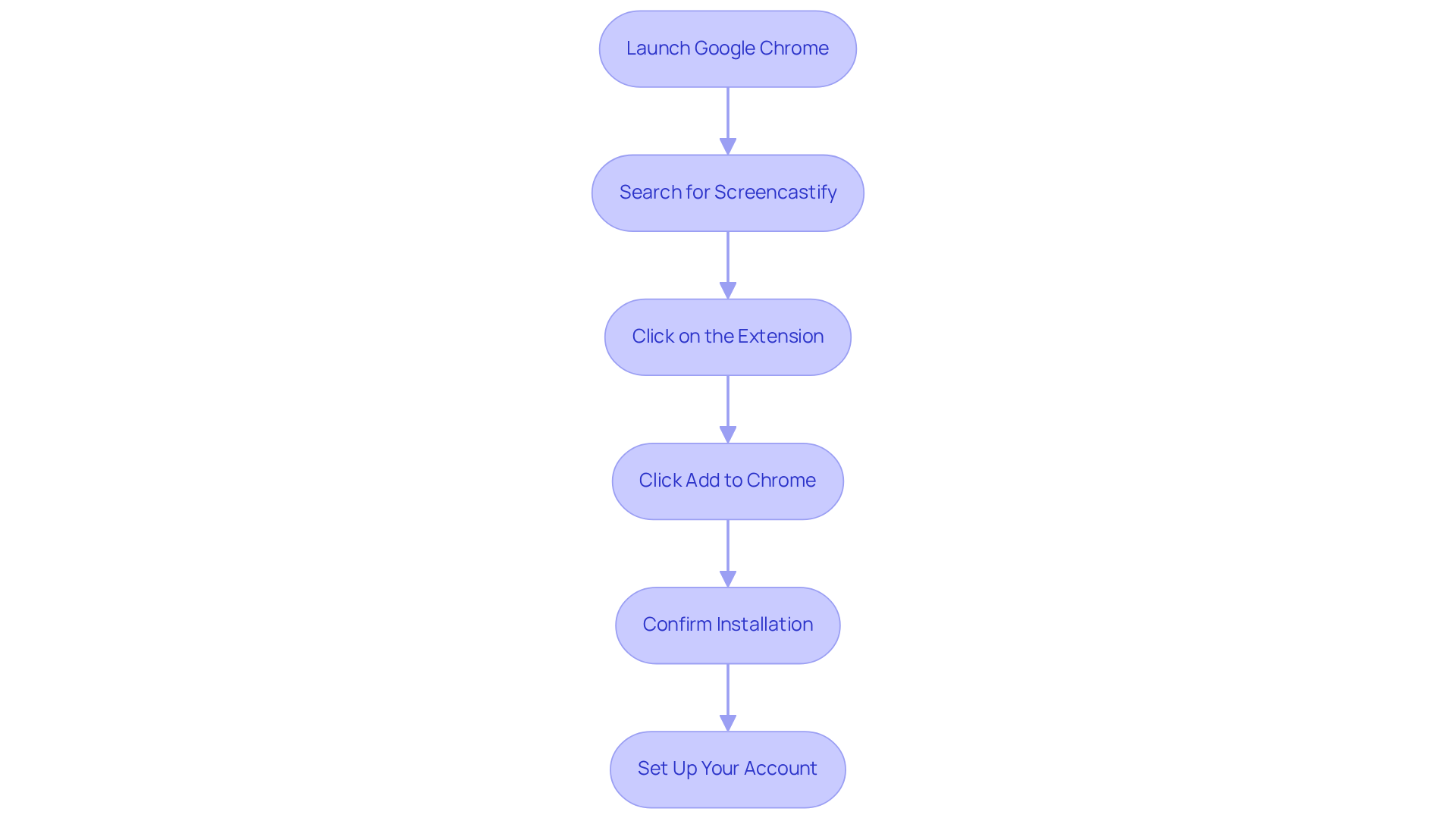
Install the Screencastify Extension
- First things first, launch Google’s browser and head over to the Web Store. You’ll find a treasure trove of just waiting for you to explore!
- Now, in that handy search bar, type 'Screencastify' and hit Enter. This has quite the fan club, especially in 2025, and you’ll want to see what all the fuss is about.
- Once you spot the extension in the search results, give it a click to check out more details. You might be wondering what makes it so special!
- Ready to get started? Just click the '' button to kick off the installation process.
- A confirmation dialog will pop up - go ahead and click 'Add extension' to keep things moving.
- After it’s installed, look up to the upper right corner of your browser. You’ll see the ! Click on it to set up your account and grant the necessary permissions. As productivity experts often say, having the right can really boost your when you download screencast videos. So, why not give it a try?
Access Your Recorded Videos
Hey there! Do you want to that you recorded in Screencastify? It’s super easy! Just follow these simple steps:
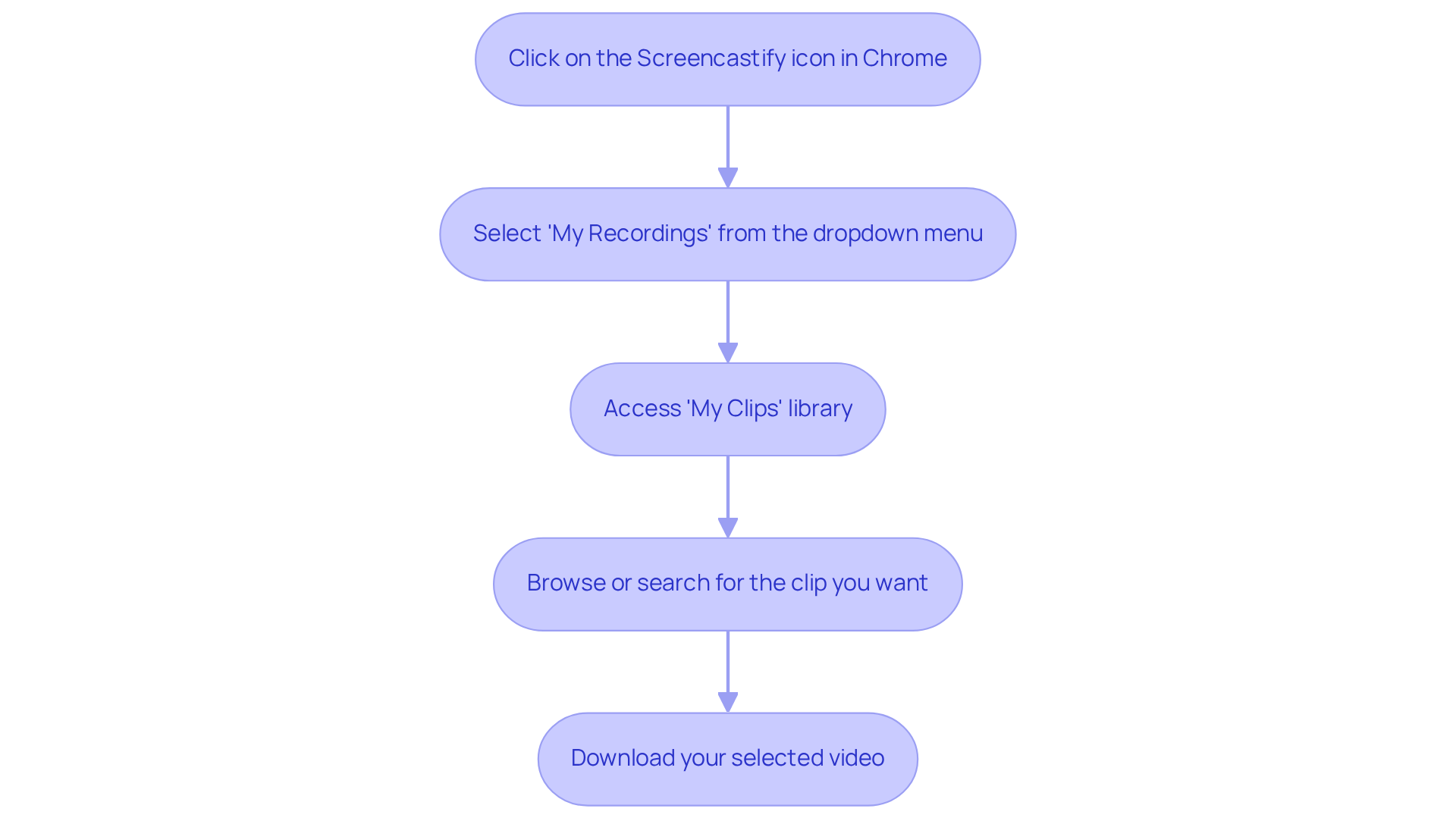
- Click on the Screencastify icon in your Chrome browser.
- From the dropdown menu, select 'My Recordings.'
- You’ll be taken to the 'My Clips' library, where you can download screencast videos and access all your .
- Browse through the list to find the clip you want to download. If you’ve got a ton of recordings, don’t forget to use the search bar for quicker access!
Now, speaking of making things easier, have you tried ? It can really boost your ! With just a few clicks, you can right from your browser and save them in your team’s workspace. This way, you’ll have quick , making and retrieval a breeze - something every can appreciate!
Download Your Screencast Videos
Hey there! Ready to ? Let’s walk through it together.
First, head over to your and find the clip you want to grab. Got it? Great! Now, just click on that clip to open it up.
Once you’re on the media management page, look for the . Click on that, and you’ll see an option to '.' Go ahead and select that to save the file right to your computer.
Now, choose where you want to keep it and hit 'Save.' And just like that, you will be able to download screencast videos! Easy peasy, right?

Troubleshoot Common Download Issues
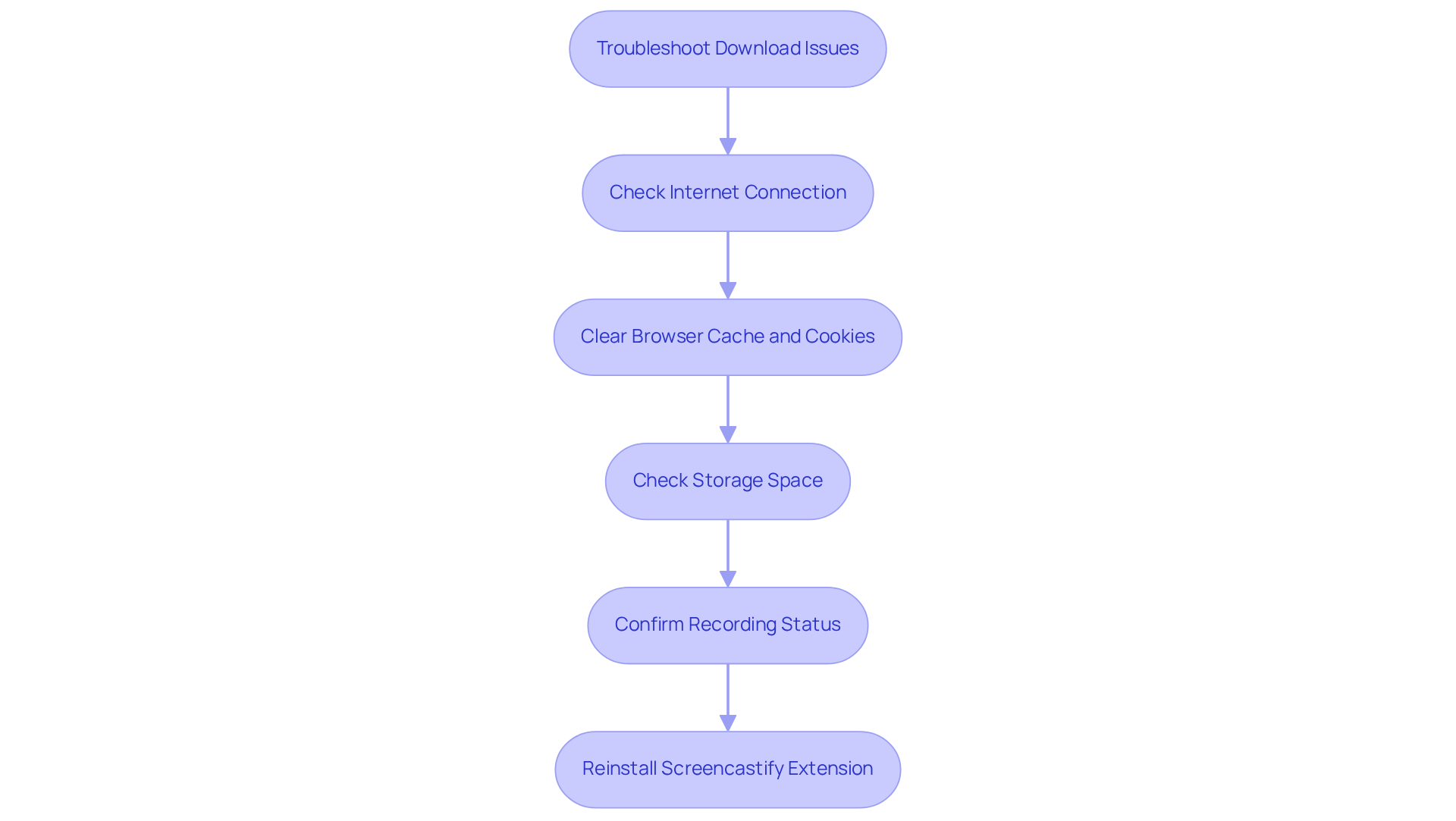
Having trouble to with Screencastify? Don’t worry, you’re not alone! Let’s walk through some and how to fix them together.
First off, check your internet connection. A stable connection is key for successful downloads when you want to download screencast videos. You might be wondering if your Wi-Fi is acting up - make sure it’s reliable before you hit that download button again.
Next, let’s talk about clearing your browser cache and cookies. Those pesky little files can sometimes get in the way. Head to your browser settings, clear them out, and then try to download screencast videos again.
Now, how’s your storage space looking to download screencast videos? Insufficient storage can definitely put a damper on your ability to download screencast videos. Take a moment to check if you have enough space available to store your file.
If you’re still not seeing your clip in the 'My Videos' library, it’s time to confirm the recording status. Did the recording save successfully? It’s an easy thing to overlook, but double-checking can save you some hassle.
Lastly, if you’re still facing issues, consider . Sometimes, a fresh install can work wonders, ensuring you have the latest version and settings.
Did you know that about 30% of users run into download issues with video tools? That’s why these troubleshooting steps are so important! As Frank DeGeorge, Chief Technology Officer for Impact Networking, puts it, " is to reduce the risk of failure of your application." is essential for a seamless experience. So, tackle these common issues head-on, and you’ll in no time!
Conclusion
You might be wondering how easily downloading screencast videos can boost your productivity, especially if you rely on visual documentation. Well, by following the step-by-step guide we’ve laid out, you can smoothly install the Screencastify extension, access your recorded videos, and download them without a hitch. This simple process not only saves you time but also gives you the power to manage your video content like a pro.
Now, let’s walk through the essential steps together, from installing the Screencastify extension to troubleshooting those pesky download issues. A few key insights to keep in mind include:
- Making sure you have a stable internet connection
- Clearing your browser cache
- Checking your recording statuses
Each of these plays a crucial role in ensuring a smooth downloading experience, so it’s super important to be aware of any potential hurdles.
In a time when visual communication is everything, mastering the tools that help you do it is essential. Embracing the techniques shared in this guide can lead to more efficient workflows and better organization of your video content. By taking action on these insights, you’ll not only simplify the downloading process but also enhance your overall productivity. So, if you’re looking to streamline your media management, why not give it a shot?
Frequently Asked Questions
How do I install the Screencastify extension?
To install the Screencastify extension, launch Google Chrome and go to the Web Store. In the search bar, type 'Screencastify' and hit Enter. Click on the extension in the search results, then click the 'Add to Chrome' button to start the installation process. Confirm by clicking 'Add extension' in the dialog that appears.
What should I do after installing Screencastify?
After installing Screencastify, look at the upper right corner of your browser for the recording icon. Click on it to set up your account and grant the necessary permissions.
Why is Screencastify popular?
Screencastify is popular because it serves as a valuable documentation tool that can enhance workflow efficiency by allowing users to download screencast videos.
👍
What others are liking


5 Steps to outline your ideal documentation structure
5 MINS READ
Where to start the your journey of mapping out your ideal documentation structure, aligning it with the very heartbeat of your organization?
Defining a winning level of detail in your process
3 MINS READ
What is too much detail, and what is too little? This article described in that winning level detail about what detail is enough.


