
Remote Team Documentation Strategies
|
April 29, 2026
|

Download Video from Screencast: Step-by-Step Instructions and Tips
Key Highlights
- Create a Screencast account to access recorded videos.
- Use compatible browsers like Google Chrome or Firefox for optimal performance.
- Utilise browser extensions to facilitate video downloads directly.
- The screen recording market is projected to grow significantly, indicating increased importance of such tools.
- Follow these steps to download videos: log in, find the clip, access the download option, select download, and verify the file.
- Troubleshooting tips include checking internet connexion, ensuring browser compatibility, clearing cache, disabling extensions, and verifying file formats.
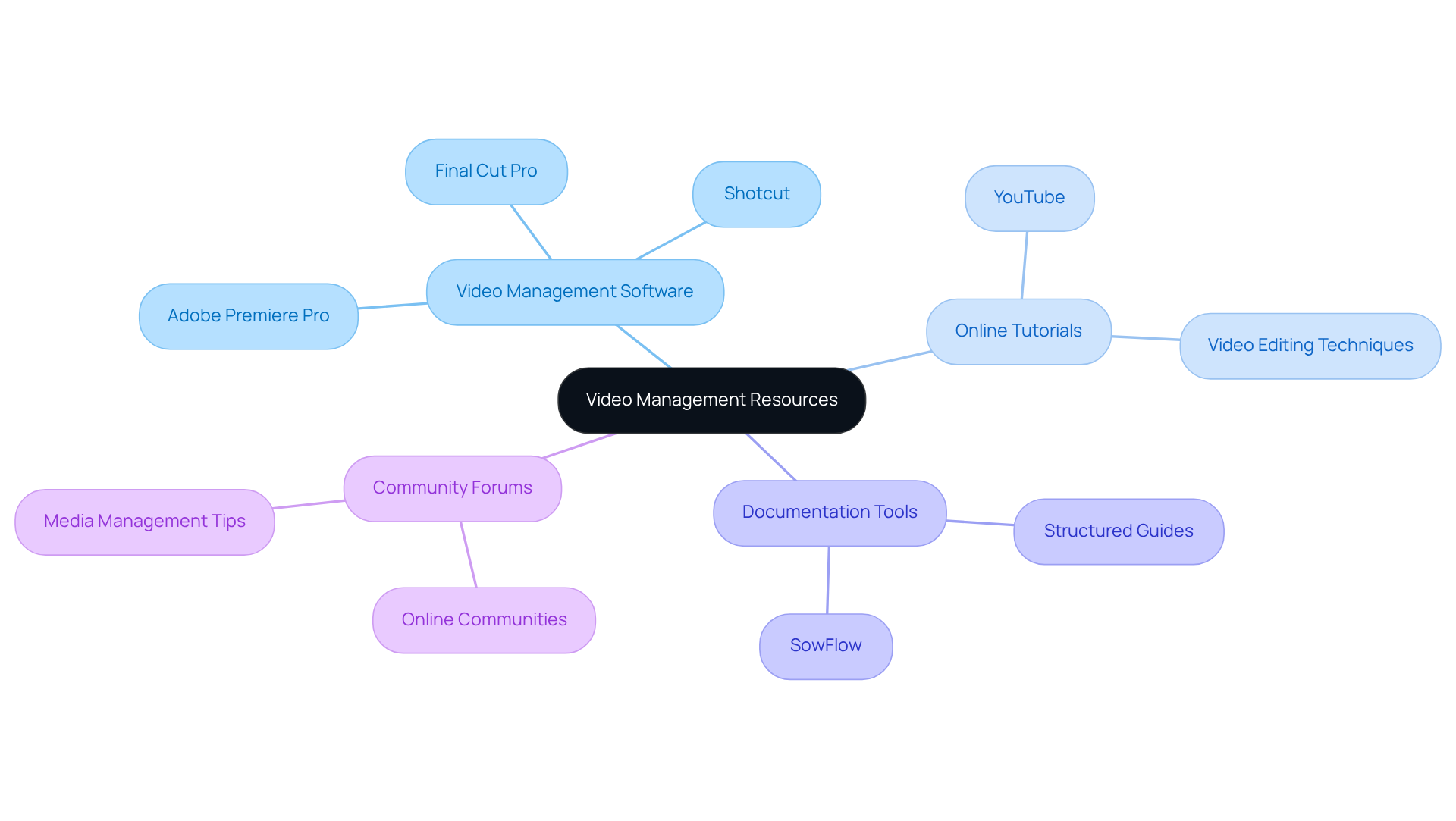
- Consider using video management software like Adobe Premiere Pro, Final Cut Pro, or free options like Shotcut for editing.
- Engage with online tutorials and community forums for additional learning and support in video management.
Introduction
You might be wondering how to navigate the world of screen recording, especially with all the digital content creation happening these days. Mastering this art is super important, and that’s where Screencast comes in. It’s a user-friendly platform perfect for whipping up tutorials and presentations. But let’s be real - the process of downloading those recordings can sometimes leave you scratching your head.
What steps do you need to take for a smooth download experience? And how can you tackle any bumps along the way? Don’t worry! This guide is here to clear up the confusion around downloading from Screencast. Plus, we’ll throw in some handy tips to boost your video management skills, so you can easily access and make the most of your recordings.
Understand Screencast and Required Tools
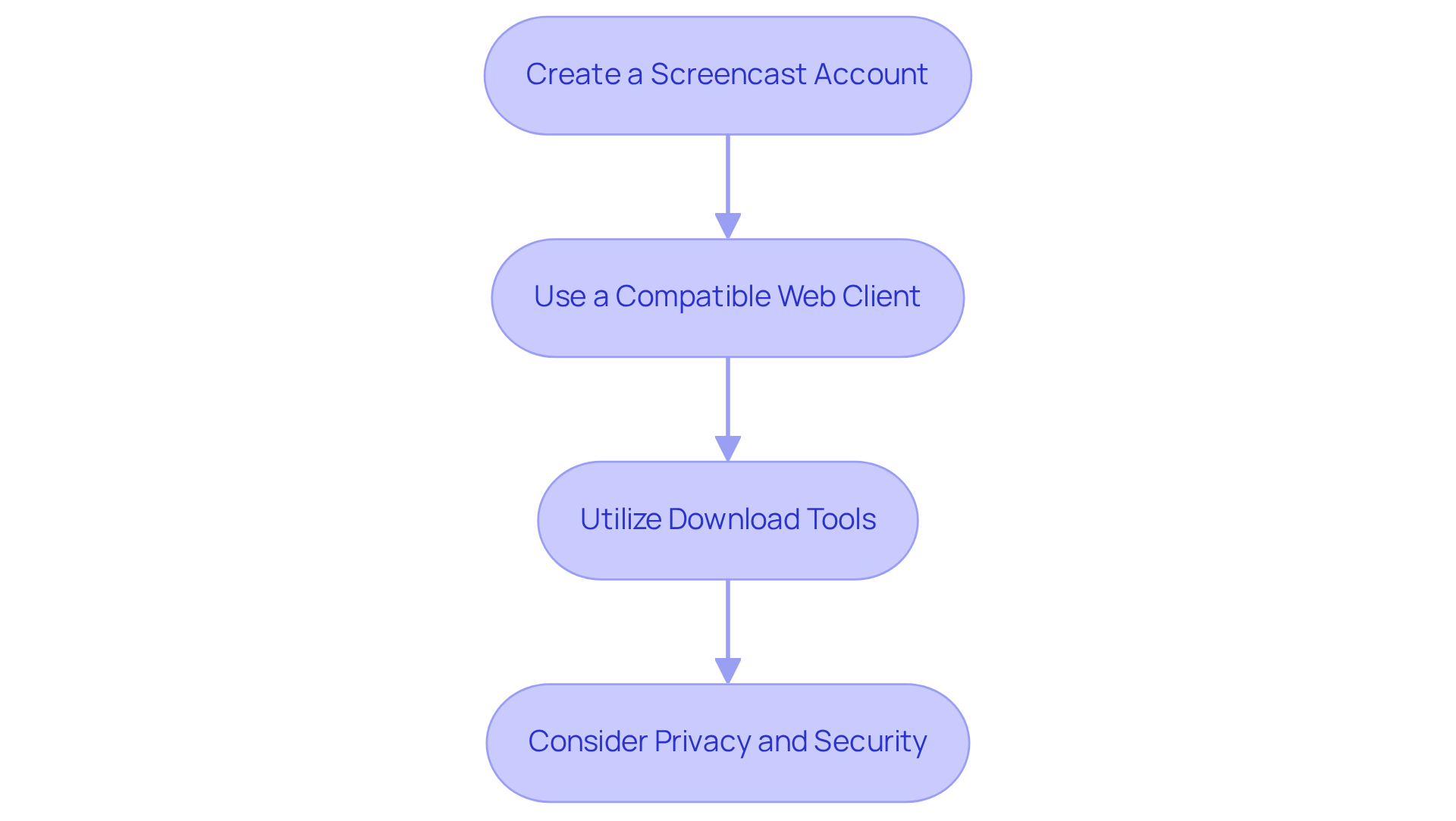
Hey there! If you’re looking to produce and share recordings of your screen, you’re in the right place. This platform is perfect for creating tutorials, presentations, and demonstrations. So, how do you ? Let’s break it down into some easy steps:
- : First things first, make sure you’ve got an active account to access your recorded videos. It’s a must!
- : For the best experience, stick with browsers like Google Chrome or Firefox. They really do the trick!
- : Depending on the format, you might need some tools or extensions to help with the download. Fun fact: about 60% of users prefer browser extensions for downloading videos directly from the web. They’re super handy!
Now, here’s something to think about: the . That’s a big deal! It really shows how important tools like this are becoming. As you get the hang of these steps, don’t forget about privacy and security, especially if you’re in a regulated sector. It’s crucial to educate yourself and others on to stay compliant with data protection regulations. By keeping these factors in mind, you can make the process to smoother and enhance your overall experience with the app.
Follow Step-by-Step Instructions to Download Videos
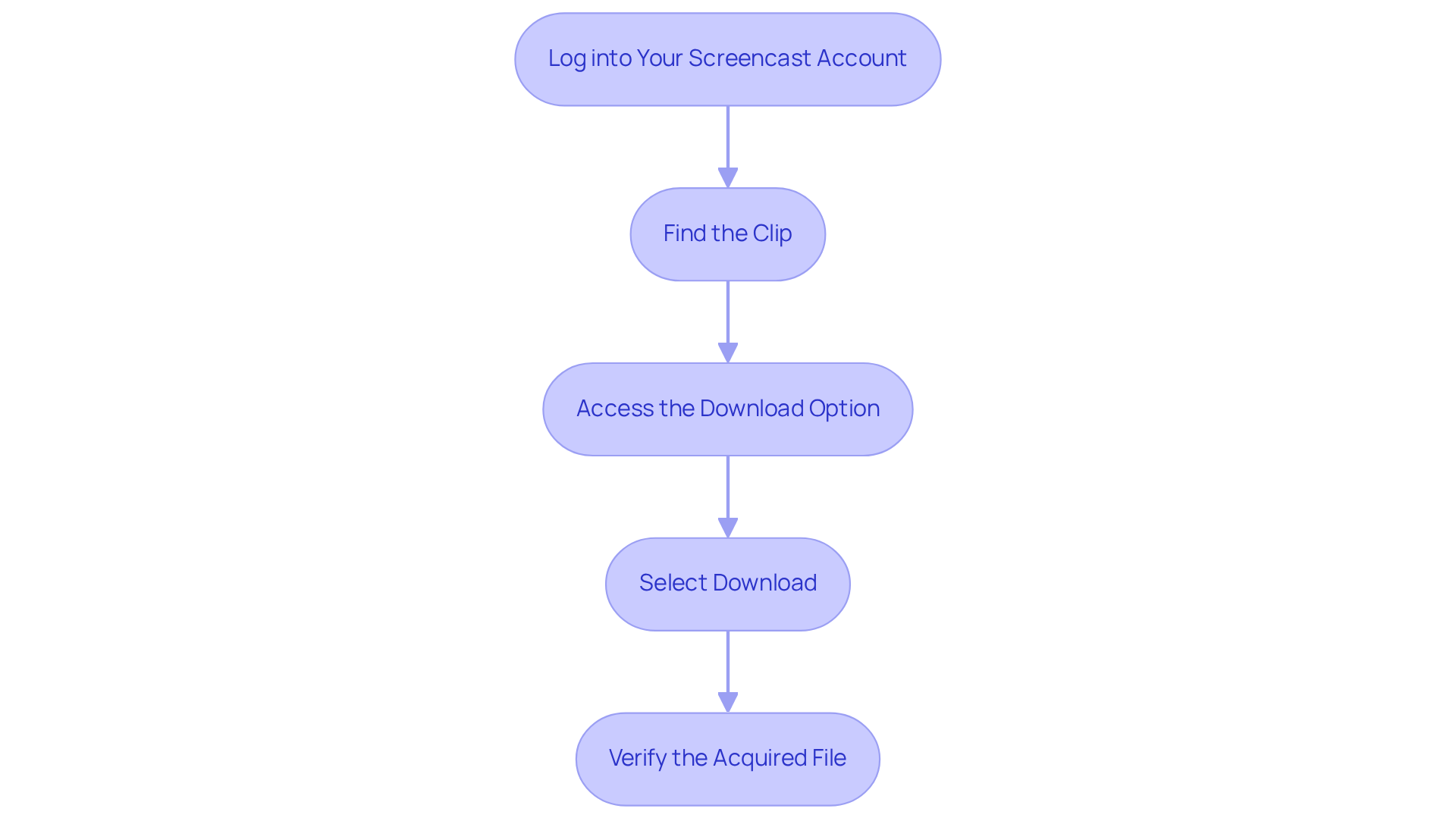
Do you want to from Screencast? No problem! Just follow these :
- Log into Your : First things first, open your browser and head over to the . Enter to get into your account.
- Find the Clip: Now, let’s find that clip you want to save. You can either browse through your library or search for it directly - whatever works best for you!
- Access the : Click on the clip to open it up. Look for the 'More' option, which is usually represented by three dots or a dropdown menu.
- Select Download: From that dropdown, just select 'Download'. Depending on how your browser is set up, the clip might save automatically to your default downloads folder, or it might ask you where you want to save it.
- : Once the download is done, head over to the folder where you saved the clip to make sure everything went smoothly.
And there you have it! By following these steps, you can easily from Screencast to grab your from the platform. Happy downloading!
Troubleshoot Common Downloading Issues
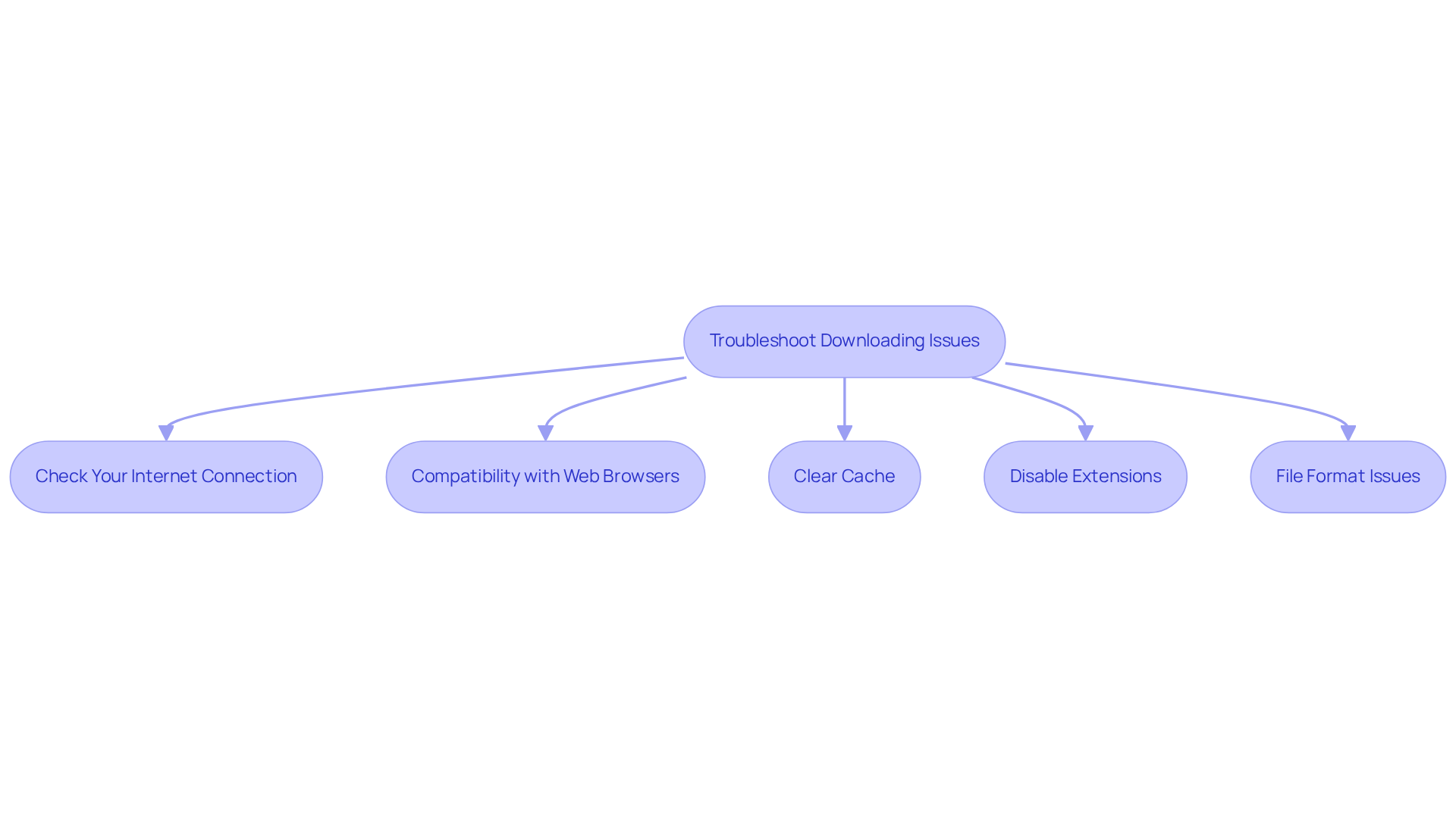
If you’re having trouble with how to , don’t worry! Let’s walk through some troubleshooting tips that might help you out:
- : You might be wondering why your downloads aren’t working. A stable internet connection is key! Make sure your connection is strong and steady-fluctuations can really mess things up. Did you know that even a 1% packet loss can lead to choppy streaming? So, keeping an eye on your connection is super important.
- : Are you using the right browser? Google Chrome and Firefox are usually your best bets for smooth sailing. If you’re still having issues, switching browsers might just do the trick and solve any compatibility hiccups that could be affecting your ability to .
- : Sometimes, clearing your web cache can work wonders. Just head to your settings and clear out the cache and cookies. Outdated data can really interfere with downloads, so it’s worth a shot!
- : Have you thought about browser extensions? Some of them can be a bit pesky and disrupt the downloading process. Try temporarily disabling any extensions and see if that helps with your download.
- : Lastly, check if the recording format is supported by your device. If it’s in an unsupported format, you might want to use a converter to make it compatible.
By following these simple troubleshooting steps, you’ll be well on your way to resolving common issues and being able to successfully!
Explore Additional Resources for Video Management
Looking to boost your ? You might want to check out these handy resources:
- : Have you tried tools like Adobe Premiere Pro or Final Cut Pro? They pack some serious ! If you’re looking for something free, Shotcut is a great option that makes video management a breeze.
- : YouTube is a treasure trove of tutorials covering all sorts of editing and management techniques. You can learn at your own pace, which is pretty cool. Did you know that research shows learners retain 95% of visual content? That’s why these tutorials are so effective! As Dr. James McQuivey from Wake Forest University puts it, a minute of video is worth about 1.8 million words-talk about efficient!
- : Ever thought about using ? They can help you create . This way, your processes are clear and easy to follow.
- : Don’t forget to engage with online communities and forums! They’re great places to swap tips and solutions for media management and challenges when you want to . You’ll find valuable insights and support from fellow users, which can really enhance your learning experience.
By tapping into these resources, you can seriously level up your . Imagine having all your downloaded content organized and easily accessible-sounds great, right?
Conclusion
You might be wondering how to download videos from Screencast without a hitch. Well, it’s actually pretty straightforward when you follow the right steps and use the right tools! This guide has laid out everything you need to know, from setting up your account to tackling those pesky troubleshooting issues. By getting a handle on these steps, you can really enhance your experience and make the most out of Screencast.
One key takeaway? Make sure you’re using compatible web clients like Google Chrome or Firefox. And don’t forget about your internet connection - having a stable one is crucial for smooth downloads. Plus, the article highlights the benefits of tapping into various resources for video management, like editing software and online tutorials, to help you better handle your downloaded content.
In a time when video content is more important than ever for communication and education, mastering how to download and manage your Screencast videos is a must. Embracing these practices not only makes your workflow smoother but also empowers you to create and share impactful visual content with ease. So, why not take that first step today? Dive into the tools and techniques that can elevate your video management skills to new heights!
Frequently Asked Questions
What is Screencast used for?
Screencast is used for producing and sharing recordings of your screen, making it ideal for creating tutorials, presentations, and demonstrations.
How do I create a Screencast account?
To create a Screencast account, simply sign up on their platform to gain access to your recorded videos.
Which web browsers are recommended for using Screencast?
For the best experience with Screencast, it is recommended to use compatible web browsers such as Google Chrome or Firefox.
What tools or extensions are needed to download videos from Screencast?
Depending on the format, you may need specific tools or browser extensions to help with downloading videos. Many users prefer browser extensions for this purpose.
What is the projected growth of the screen recording market?
The screen recording market is projected to grow from $9.58 billion in 2024 to $10.92 billion in 2025.
Why is privacy and security important when using screen recording tools?
Privacy and security are crucial when using screen recording tools, especially in regulated sectors, to ensure compliance with data protection regulations and responsible recording practices.
List of Sources
- Understand Screencast and Required Tools
- Screen Recorder Market Report: Trends, Forecast and Competitive Analysis to 2030 (https://lucintel.com/screen-recorder-market.aspx)
- Screen Recording Software Market Report | Global Forecast From 2025 To 2033 (https://dataintelo.com/report/global-screen-recording-software-market)
- Future of Screen Recording: Trends and Tools Shaping the Industry in 2025 and Beyond - SuperAGI (https://superagi.com/future-of-screen-recording-trends-and-tools-shaping-the-industry-in-2025-and-beyond)
- Screen Recording Software Market Analysis: Share, Size, and Value with Growing 5.8% CAGR 2025 to 2032 · Apiary (https://screenrecordingsoftwaremarketsharemarkettrendsandforecastsf.docs.apiary.io)
- Follow Step-by-Step Instructions to Download Videos
- Global time spent with online video 2023| Statista (https://statista.com/statistics/611707/online-video-time-spent?srsltid=AfmBOooo0ihzFfTSGlTy65B_Cyz1tB7jQKP7SccdMqp3mXu3GN1x_1Th)
- teleprompter.com (https://teleprompter.com/blog/video-marketing-statistics)
- 30 Vital Video Marketing Statistics You Need to Know in 2025 (https://thesocialshepherd.com/blog/video-marketing-statistics)
- 100+ Essential Video Marketing Statistics For 2025 (Updated) (https://herenow.film/trimtab/essential-video-marketing-statistics)
- Troubleshoot Common Downloading Issues
- Browser Statistics 2025: Market Share, User Preferences, and Future Outlook (https://sqmagazine.co.uk/browser-statistics)
- Top 10 Frustrating Browser Compatibility Issues Devs Face | LambdaTest (https://lambdatest.com/blog/top-browser-compatibility-pain-points-for-developers)
- Topic: Web Browsers (https://statista.com/topics/5684/web-browsers?srsltid=AfmBOoreOayE-1dzFDDu1d_MlDhDRXMAxVv30mjm1eoi1rFGbAtuSCAD)
- 8 Network Statistics IT Pros Should Know to Understand and Optimize Network Performance - Obkio (https://obkio.com/blog/network-statistics)
- 40+ Browser Statistics and Trends (2025) (https://vpnalert.com/resources/browser-statistics)
- Explore Additional Resources for Video Management
- 7 Stats that Prove Why Video Instructions are More Effective than Written (https://speach.me/blog/7-stats-that-prove-why-video-instructions-are-more-effective-than-written)
- Video Management Software Market Size & Share Report, 2032 (https://metastatinsight.com/report/video-management-software-market)
- Video Management Software Market | Industry Report, 2033 (https://grandviewresearch.com/industry-analysis/video-management-software-market)
- research.com (https://research.com/education/video-training-statistics)
- Video Management Software Market Size 2022-2030, By Technology & Component (https://gminsights.com/industry-analysis/video-management-software-market)
👍
What others are liking


5 Steps to outline your ideal documentation structure
5 MINS READ
Where to start the your journey of mapping out your ideal documentation structure, aligning it with the very heartbeat of your organization?
Defining a winning level of detail in your process
3 MINS READ
What is too much detail, and what is too little? This article described in that winning level detail about what detail is enough.


