

Key Highlights
- Pop-up blockers are built into web browsers to prevent disruptive ads and alerts.
- Approximately 81% of Americans use ad prevention tools, primarily due to excessive ads.
- While ad filters reduce distractions, they can block important content like login forms.
- Experts stress the need for a balance in ad filtering to avoid missing necessary information.
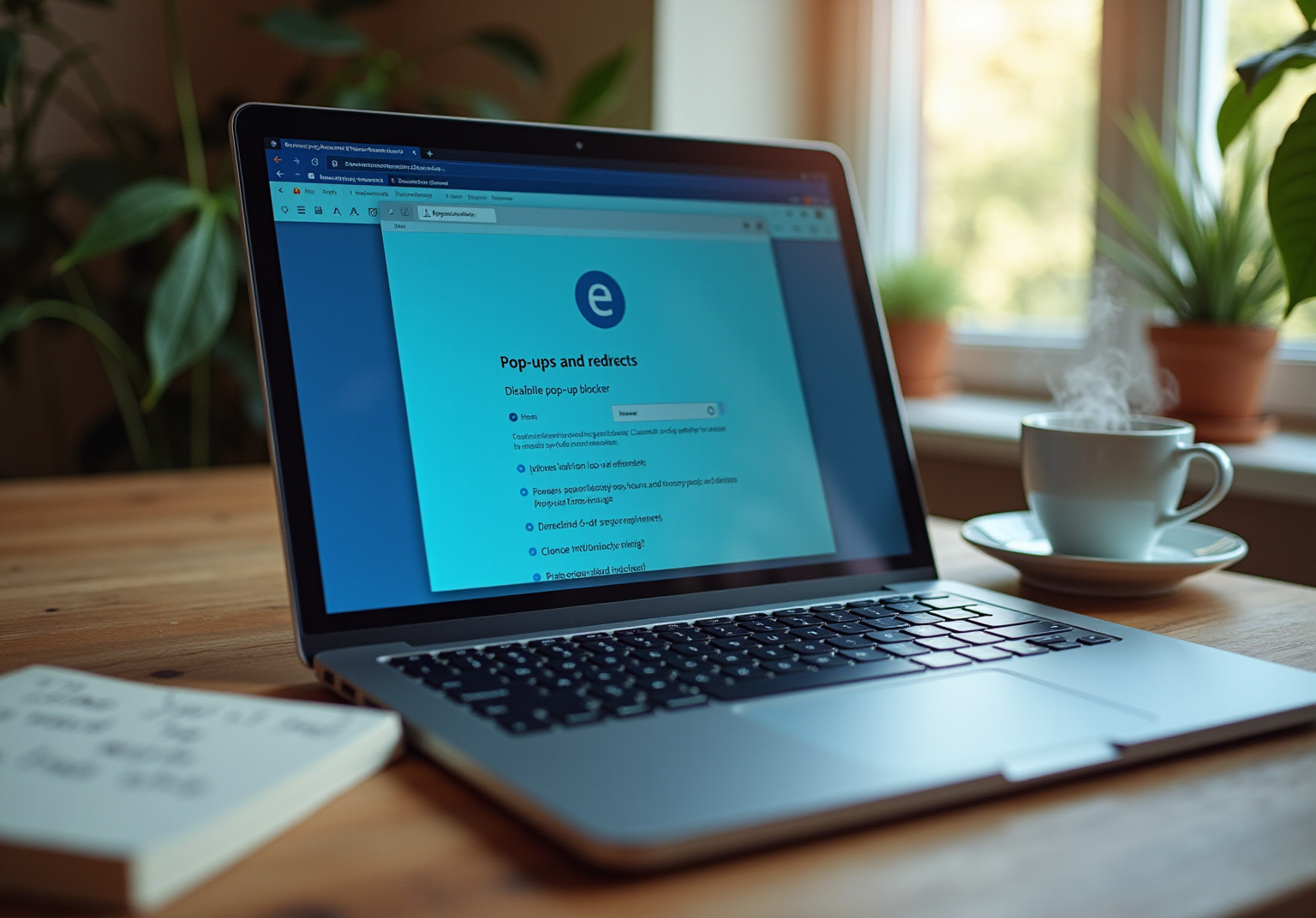
- To disable the pop-up blocker in Edge, users must navigate through settings and toggle the appropriate option.
- Troubleshooting tips include checking for updates, clearing cache, disabling extensions, and confirming site permissions.
- Additional tools for managing pop-ups include ad blockers and pop-up management extensions, which can enhance the browsing experience.
Introduction
Navigating the online world can often feel like a balancing act, right? Especially when it comes to pop-up blockers. You might be wondering how these tools, designed to enhance your browsing experience by getting rid of those pesky ads and interruptions, can sometimes get in the way of essential features like login forms and notifications.
So, what do you do when the very tools meant to protect you end up creating obstacles? This article is here to help! We’ll walk you through the step-by-step process of disabling the pop-up blocker in Microsoft Edge, giving you back control over your browsing experience. Understanding how to manage these settings is crucial for a seamless online journey, and we’re excited to guide you through it.
Now, let’s dive into how you can make your online experience smoother!
Understand Pop-Up Blockers and Their Functionality
You might be wondering about interference prevention tools and why they matter. Well, these handy features are built right into your web browser to keep those pesky pop-ups and unwanted windows from crashing your browsing party. We all know how annoying disruptive ads and alerts can be, right? They can really pull you away from what you’re trying to focus on. While ad filters can make your online experience smoother by cutting down on distractions, they sometimes block important stuff too - like login forms or crucial notifications from websites. Imagine trying to navigate a site that relies on notifications for key functions, only to find yourself stuck or missing out on important info.
Did you know that around 81% of Americans use some form of ad prevention tool? That’s a pretty big number, showing just how common these tools have become in our online lives. And get this: 63.2% of folks say they use ad filters because there are just too many ads out there. But here’s the catch - while these tools help, they can also get in the way of accessing valuable content. A survey found that 71% of people think websites are easier to use without those annoying banners, but they also admit that blocking too much can lead to frustration when trying to access features they actually need.
Experts like Jonathan Strickland emphasize the importance of finding a balance with ad filters. A good pop-up filter can spot and block those nuisance ads while still letting the helpful ones through. Plus, 31% of US adults say they use ad filters to protect their privacy, which shows that people are really concerned about their online safety. As we look ahead to 2026, where a whopping 63% of global ad spending is digital, it’s clear that expectations for smooth and unobtrusive web interactions are on the rise. Understanding how pop-up blockers work can really help you make smart choices about disabling pop up blocker on edge, allowing you to get the info you need without all those annoying interruptions.

Step-by-Step Instructions to Disable the Pop-Up Blocker in Edge
- Open Microsoft Edge: Go ahead and launch the Edge application on your device.
- Access Settings: You’ll want to click on those three horizontal dots (the menu icon) in the top-right corner of the window.
- Select Settings: From the dropdown menu, just choose 'Settings'.
- Navigate to Site Permissions: In the left sidebar, click on 'Cookies and site permissions'.
- Find Pop-Ups and Redirects: Scroll down to the 'All permissions' section and click on 'Pop-ups and redirects'.
- Disable the Obstruction: Now, toggle that switch to turn off the advertisement filter. Make sure it shows 'Blocked (recommended)' switched to 'Off'.
- Confirm Changes: Close the settings tab and refresh your window to apply those changes.
Disabling pop up blocker on Edge is essential for improving accessibility and ensuring that you can see necessary pop-ups from websites. You might be wondering why this matters? Well, as Samantha Murillo, a Growth Marketer for Tech and SaaS, puts it, "User accessibility in settings is crucial for a seamless experience." Plus, research shows that effective browser settings can really boost your user experience. In fact, studies indicate that streamlined access to information can cut down time spent in unnecessary meetings by up to 30%! So, by following these steps, you’ll be disabling pop up blocker on Edge, which will allow those windows from websites to pop up as needed.

Troubleshooting Common Issues When Disabling the Pop-Up Blocker
If you're having a tough time disabling pop up blocker on Edge, don’t worry! Here are some troubleshooting tips that might just do the trick:
- Check for Updates: First things first, make sure your Microsoft Edge app is up to date. Sometimes, older versions can have bugs that mess with your settings.
- Clear Cache and Cookies: You know how saved data can sometimes throw a wrench in the works? Clearing your cache and cookies might help. Just head over to 'Settings' > 'Privacy, search, and services' > 'Clear browsing data'. Easy peasy!
- Disable Conflicting Extensions: Got some browser extensions running? They might be causing a ruckus with your notification settings. Try temporarily disabling them to see if that helps.
- Restart the Browser: After making any changes, give Edge a quick restart. This ensures all your new settings kick in properly.
- Check Site Permissions: Lastly, double-check that specific sites aren’t blocked under 'Site permissions'. You can add exceptions for sites that need those extra windows.
By following these steps, you should be able to tackle those common issues related to disabling pop up blocker on Edge. Happy browsing!

Explore Additional Tools for Managing Pop-Ups in Edge
You might be wondering how to tackle those pesky pop-ups by disabling pop up blocker on Edge while you browse. Well, aside from the built-in pop-up blocker settings, disabling pop up blocker on Edge can also provide you with handy tools to take control of your browsing experience.
First up, let’s talk about Ad Blockers. Extensions like uBlock Origin or AdBlock Plus can really help filter out those annoying ads and intrusive windows. Imagine a cleaner, distraction-free browsing experience - sounds nice, right?
Then there are Pop-Up Management Extensions. Tools like Poper Blocker are designed to specifically target those interruptions and overlays. You can even customize which sites can show these pop-ups, giving you more control over what you see.
Don’t forget to regularly check your Browser Settings, particularly for disabling pop up blocker on Edge! It’s a good idea to make sure they align with your browsing habits. Adjusting permissions for specific sites can make a big difference.
Lastly, consider using Feedback Tools. Some extensions let you report unwanted ads, which helps improve the browsing experience for everyone.
By using these tools, you can really enhance your control over pop-ups and create a more enjoyable browsing environment. So, why not give them a try?

Conclusion
You might be wondering why disabling the pop-up blocker on Microsoft Edge is so important. Well, while these blockers are great for cutting out annoying ads and alerts, they can sometimes get in the way of accessing features you really need. By knowing how to manage these settings, you can navigate the web more smoothly and make sure you don’t miss out on important notifications or content.
In this article, we’ve laid out a step-by-step guide on how to disable the pop-up blocker in Edge. We covered everything from accessing the settings to confirming your changes, plus some handy troubleshooting tips for those pesky issues that might pop up. It’s all about finding that sweet spot between filtering out ads and keeping your browsing experience user-friendly. After all, a seamless online experience is what we’re all after in today’s digital world.
So, taking control of pop-ups in Microsoft Edge is really about making your online experience more personal and efficient. By following the steps we’ve outlined and considering tools like ad blockers or pop-up management extensions, you can customize your browsing settings to suit your needs. Embracing these strategies not only boosts usability but also makes your internet journey a lot more enjoyable and free from distractions.
Frequently Asked Questions
What are pop-up blockers and why are they important?
Pop-up blockers are tools built into web browsers that prevent disruptive ads and unwanted windows from appearing, helping to maintain a smoother browsing experience.
What percentage of Americans use some form of ad prevention tool?
Approximately 81% of Americans use some form of ad prevention tool.
Why do people use ad filters?
People primarily use ad filters because they find there are too many ads online, with 63.2% citing this reason. Additionally, 31% use them to protect their privacy.
What are the potential downsides of using ad filters?
While ad filters reduce distractions, they can also block important content such as login forms and crucial notifications, which may lead to frustration for users trying to access essential features.
What do experts say about finding a balance with ad filters?
Experts emphasize the importance of balancing ad filters to block nuisance ads while still allowing helpful content through, ensuring a better user experience.
How do pop-up blockers affect user experience on websites?
While pop-up blockers can make websites easier to navigate by removing annoying banners, they can also hinder access to important features, leading to user frustration.
What is the expected trend for digital ad spending by 2026?
By 2026, it is expected that 63% of global ad spending will be digital, indicating a growing demand for smooth and unobtrusive web interactions.
👍
What others are liking


5 Steps to outline your ideal documentation structure
5 MINS READ
Where to start the your journey of mapping out your ideal documentation structure, aligning it with the very heartbeat of your organization?
Defining a winning level of detail in your process
3 MINS READ
What is too much detail, and what is too little? This article described in that winning level detail about what detail is enough.


