
Remote Team Documentation Strategies
|
April 29, 2026
|

Create a Screencast for PC: A Step-by-Step Guide for Managers
Key Highlights
- Screencasting captures computer displays with audio narration, making complex information easier to understand.
- Benefits for managers include training employees, giving feedback, and documenting workflows, leading to improved productivity.
- Effective screencast creation involves defining objectives, outlining key points, writing a script, practising, and gathering visual aids.
- Choosing the right recording software is crucial; options include OBS Studio, Camtasia, and Screencast-O-Matic, with emphasis on user-friendliness and compatibility.
- Aidan Hoggard's case study illustrates the effectiveness of screencasts in education, enhancing student learning through flexible access to material.
- Recording steps include setting up the environment, adjusting settings, and using pause/resume features for seamless delivery.
- Editing involves trimming unnecessary parts, adding visual elements, adjusting audio levels, and exporting in high resolution for maximum impact.
Introduction
You might be wondering how to create effective communication tools that really boost your team's productivity and engagement. Well, screencasting is a fantastic way to do just that! It’s all about capturing your computer screen while adding audio narration, which lets you visually share complex information, streamline training, and give targeted feedback.
But here’s the big question: how can you make the most of this powerful tool to enhance your team's learning and retention? This guide is here to walk you through the step-by-step process of crafting impactful screencasts for PC. Get ready to discover insights that could totally change how information flows in your organization!
Understand Screencasting: Definition and Importance
You might be wondering what a is all about. Well, it’s the process of creating a that captures your computer display along with audio narration to make a tutorial or presentation. This method lets you , making complex information a whole lot easier to grasp.
For managers, using a is a fantastic tool for:
Imagine being able to while boosting knowledge retention among your team members! By using a , you can visually convey information, helping ensure that everyone is on the same page. This ultimately leads to improved productivity and efficiency.
So, why not give it a shot? You’ll find that using a screencast for PC can really transform the way you communicate and share knowledge with your team!

Plan and Script Your Screencast Effectively
- : So, what’s the goal of your screencast? You might be wondering what you want your audience to learn or understand. Pinning this down will really guide your content.
- : Next up, let’s create an outline. Jot down the main topics you want to cover. This little step helps organize your thoughts and keeps everything flowing logically.
- : Now, how about drafting a script? It doesn’t have to be word-for-word, but having one ensures you hit all the important points and keeps that conversational vibe going. Did you know that learners recall 95% of ? That really highlights how is in video production! Plus, a script helps you steer clear of unnecessary fluff and filler words, making your message sharper.
- Practice: Alright, it’s time to rehearse! Get comfortable with your script and the timing. This practice will help you sound natural and confident when you hit that record button.
- : If you can, gather any visuals or examples you want to include. They can really boost understanding and keep your audience engaged.
- : Don’t forget about your gear! A good microphone is key for . Aim for a resolution of 1280x720 pixels for clarity, and try to keep your videos under six minutes. Shorter videos help maintain viewer engagement and improve how much they absorb.
By following these steps, you’ll be on your way to creating a screencast that not only meets your goals but also resonates with your audience, ensuring they really get the message you want to share.

Choose the Right Tools and Software for Recording
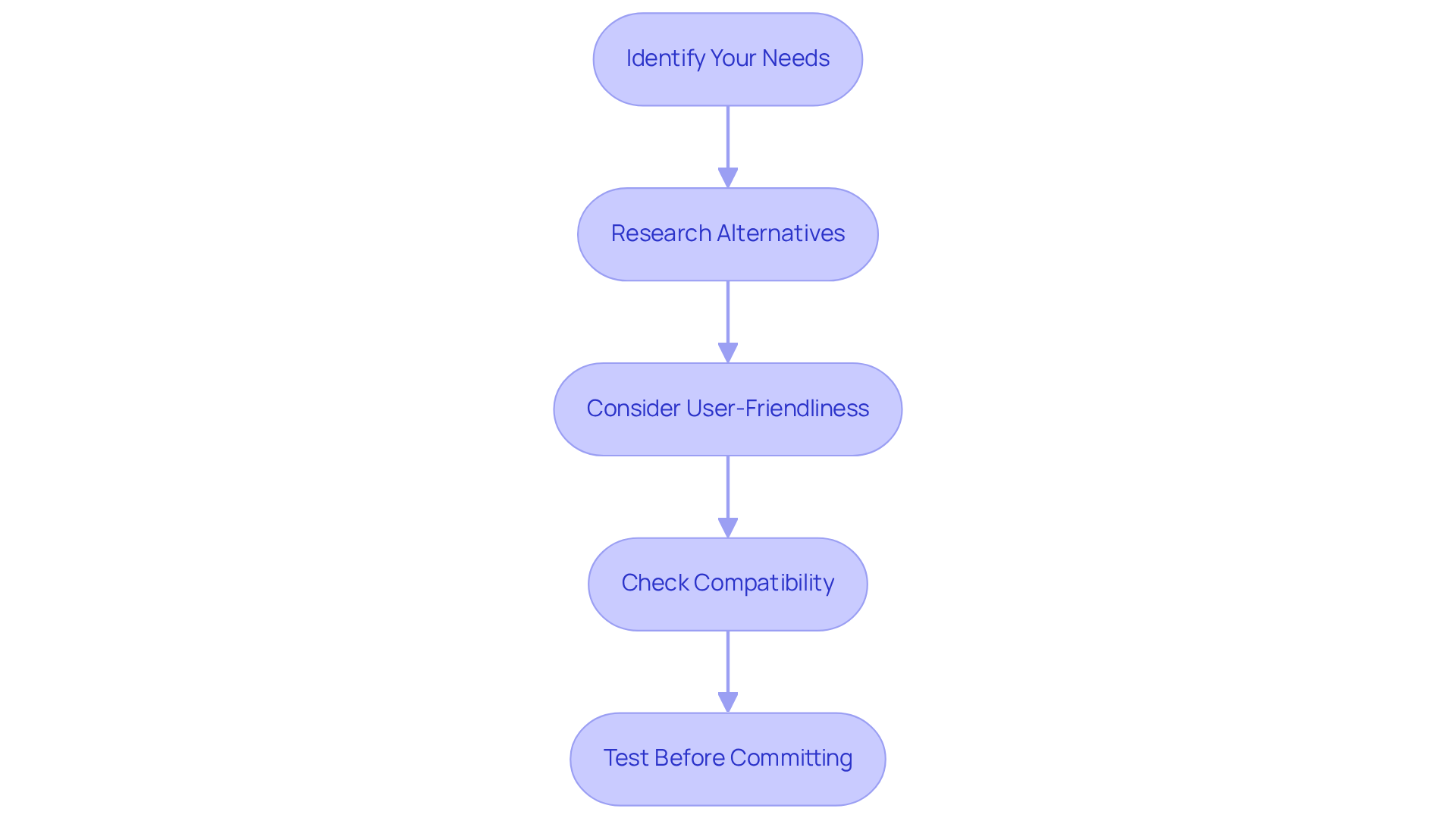
- Identify Your Needs: You might be wondering where to start. First things first, outline what features you really need for your . Do you want advanced editing tools, or will basic recording do the trick for what you’re aiming to achieve?
- Research Alternatives: Now, let’s dive into some options. Check out popular recording software like OBS Studio, Camtasia, and Screencast-O-Matic. Each of these tools has its own unique features, so it’s super important to evaluate them based on what you specifically need to find the best fit.
- Consider User-Friendliness: You don’t want to get stuck in a complicated interface, right? Look for software that’s easy to use, especially if you’re just starting out with a . A can really help you get the hang of things faster and make your experience much more enjoyable.
- Check Compatibility: Before you get too excited, make sure the software works with your operating system-whether it’s Windows, Mac, or something else. You’ll also want to ensure it plays nice with any other tools you plan to use, so everything runs smoothly.
- Test Before Committing: Here’s a tip: take advantage of free trials! Many software options offer these, and testing them out can help you see if they meet your needs before you spend any money.
Case Study Insight: Let’s look at a real-world example. has been using . He creates videos with Adobe Captivate that let students revisit material at their own pace. This demonstrates how effective a can be in educational settings. Choosing the right software really matters!
Quote: As Aidan Hoggard puts it, "Using screencasts has provided students with the at their own pace, thereby enhancing their learning experience." This really highlights how important these tools are for .
Statistics: And just to show you how well this approach works, Aidan’s recordings have racked up 132 views and 54 plays! That’s some solid engagement, proving how effective this method can be in connecting with an audience.
Record Your Screencast: Step-by-Step Instructions
- Set Up Your Environment: You might be wondering where to start. Pick a quiet spot with minimal distractions. A clean and organized computer screen can really help you focus and look professional. Plus, if you’re in a carpeted area, it can , making your audio sound much better. So, choose a time when things are a bit quieter around you.
- Open Your : Now, let’s get that up and running! If you’re using something like ScreenPal, you’re in for a treat with its . Take a moment to explore its features and settings - this will make your recording process a breeze.
- Adjust Settings: Before you hit record, let’s make sure everything’s set up just right. Check your audio and video settings carefully. Give your microphone a quick test to ensure it’s clear, and adjust the capture area to show all the important stuff on your screen. Keeping a consistent distance from the mic - about a hand's width - will help you get that crisp audio quality.
- Start Recording: Ready to roll? Hit that record button and dive into your presentation! Stick to your script, and remember to speak clearly and at a steady pace to keep your viewers engaged. And hey, have you thought about in no time? Just a single command can pull up all the documentation you need!
- Pause and Resume as Needed: Made a mistake? No worries! Most tools for allow you to pause and resume, enabling you to keep things flowing naturally without having to start from scratch.
- Stop Recording: Once you’ve nailed all your points, go ahead and stop the recording. Save your file in a format that works for editing. With SowFlow, is a piece of cake, keeping it fresh and relevant in today’s .

Edit and Finalize Your Screencast for Maximum Impact
- Import : So, you’ve got ready? Great! Just launch and import that file to kick off the editing process.
- : Now, let’s talk about trimming. You’ll want to cut out any mistakes or those awkward long pauses. Keeping things concise is key to keeping your viewers engaged. Did you know that ? Aim for a sweet spot of 2 to 5 minutes, especially on platforms like Facebook.
- : Consider adding some text overlays, annotations, or cool graphics to your . These elements not only spotlight key points but also help with understanding. In fact, . And hey, don’t forget about closed captioning - it makes your content accessible to even more folks!
- Adjust Audio Levels: Next up, let’s make sure your audio is on point. Your voice should be clear and at a steady volume throughout. If you’ve got background music or sound effects, tweak those levels so they don’t drown out your narration. Remember, , so let’s keep that audio crystal clear!
- : Happy with your edits? Awesome! Now it’s time to export your clip in a format that’s ready to share. Go for high resolution to ensure everything looks sharp. After all, videos with good production quality are more likely to build trust with your viewers.

Conclusion
You might be wondering how screencasting for PC can really make a difference for managers like you. Well, it’s a fantastic way to boost communication, training, and productivity within your team. By capturing your screen along with audio narration, screencasts help you share complex information clearly, making it easier for everyone to grasp and remember key points. In this guide, we’ve walked through the essential steps to create effective screencasts - from planning and scripting to picking the right tools and wrapping up your recordings.
Let’s talk about some key insights. First off, defining your objectives is crucial. You want to know what you aim to achieve with your screencast. Organizing your content with outlines can really help keep things on track, and practicing your delivery ensures you come off polished and professional. Plus, choosing user-friendly software that fits your needs, along with some solid editing techniques, can really elevate the quality of your final product. Take Aidan Hoggard’s experience, for example; it shows just how much screencasts can enhance learning and engagement, proving their worth in various settings.
As the need for effective communication tools keeps rising, embracing screencasting could be a real game-changer for you. Why not explore this powerful medium? Implement the strategies we’ve discussed and see for yourself how it can enrich team collaboration and knowledge sharing. By leveraging screencasts, your organization can streamline training processes and foster a culture of continuous learning and improvement. So, are you ready to dive in and make the most of this exciting tool?
Frequently Asked Questions
What is a screencast for PC?
A screencast for PC is a process that captures your computer display along with audio narration to create a tutorial or presentation, allowing for visual demonstration of processes.
What are the benefits of using a screencast for PC?
Using a screencast for PC is beneficial for training employees, giving feedback, and documenting workflows. It helps reduce meeting times and improves knowledge retention among team members, leading to enhanced productivity and efficiency.
How can I effectively plan and script my screencast?
To effectively plan and script your screencast, you should: - Define your objective to guide your content. - Outline key points to organize your thoughts. - Write a script that emphasizes important points while maintaining a conversational tone. - Practice to ensure natural delivery. - Gather visual aids to enhance understanding. - Choose the right equipment, such as a good microphone and appropriate video resolution.
Why is a script important for a screencast?
A script is important because it helps ensure that you cover all key points, keeps your message clear and focused, and allows for a more conversational delivery. It also helps avoid unnecessary filler content.
What equipment is recommended for creating a screencast?
Recommended equipment includes a good microphone for clear audio and a resolution of 1280x720 pixels for video clarity. Keeping videos under six minutes is also advised to maintain viewer engagement.
List of Sources
- Plan and Script Your Screencast Effectively
- How to Make a Screencast in 6 Easy Steps [Tips & Tricks] (https://ispringsolutions.com/blog/how-to-make-a-screencast-tips-and-tricks)
- Video Marketing Statistics You Can Use in 2025 (https://filmdivision.video/video-marketing-statistics-2025)
- research.com (https://research.com/education/video-training-statistics)
- 2025 Video Marketing Statistics That Will Blow Your Mind (https://sundaysky.com/blog/2025-video-marketing-statistics)
- Video Marketing Statistics 2025: Key Data and Trends | Rev (https://rev.com/blog/video-marketing-statistics)
- Choose the Right Tools and Software for Recording
- Case Study: Aidan Hoggard on screencasting (https://digitalmedia.sheffield.ac.uk/media/Case+StudyA+Aidan+Hoggard+on+screencasting/0_alzjh92s)
- Record Your Screencast: Step-by-Step Instructions
- blog.hubspot.com (https://blog.hubspot.com/marketing/video-marketing-statistics)
- 100+ Essential Video Marketing Statistics For 2025 (Updated) (https://herenow.film/trimtab/essential-video-marketing-statistics)
- 5 Best Practices For Creating Quality Screencasts (https://screenpal.com/blog/5-best-practices-creating-quality-screencasts)
- State of Video Report: Video Marketing Statistics for 2025 (https://wistia.com/learn/marketing/video-marketing-statistics)
- 11 Video Marketing Statistics of 2025: Numbers Tell the Story (https://outbrain.com/blog/video-marketing-statistics)
- Edit and Finalize Your Screencast for Maximum Impact
- 30 Expert Quotes on Content Strategy for Digital Products (https://blog.tubikstudio.com/30-expert-quotes-on-content-strategy-for-digital-products)
- 100+ Essential Video Marketing Statistics For 2025 (Updated) (https://herenow.film/trimtab/essential-video-marketing-statistics)
- Video Marketing Statistics 2025: Key Data and Trends | Rev (https://rev.com/blog/video-marketing-statistics)
- 67 Video Marketing Stats You Need to Know for 2026 (Updated) - Lemonlight (https://lemonlight.com/blog/67-video-marketing-stats-you-need-to-know)
- The Best Way to Make Testimonial Videos: A Step-by-Step Guide | TechSmith (https://techsmith.com/blog/testimonial-videos?srsltid=AfmBOopkIlw7V2Pq-931N-qEG7SZTIuZtNGnlXE_WCLyzGzrnjBH06wK)
👍
What others are liking


5 Steps to outline your ideal documentation structure
5 MINS READ
Where to start the your journey of mapping out your ideal documentation structure, aligning it with the very heartbeat of your organization?
Defining a winning level of detail in your process
3 MINS READ
What is too much detail, and what is too little? This article described in that winning level detail about what detail is enough.


