
Remote Team Documentation Strategies
|
March 9, 2026
|

5 Steps to Master Recording Screencasts for Your Team
Key Highlights:
- Invest in a quality microphone, like a USB condenser mic, to capture clear sound and consider using a pop filter.
- Choose a quiet recording environment by minimising background noise and improving room acoustics with soft furnishings.
- Cheque sound settings in your recording software, ensuring the microphone is selected and input levels are between -12dB and -6dB.
- Conduct a sound cheque by recording a test clip to assess sound quality before the actual recording.
- High-quality sound enhances audience engagement; 87% of consumers believe visual clarity affects brand trust.
- For video resolution, 1920x1080 (1080p) is ideal for clarity, while 1280x720 (720p) may suffice for simpler content.
- Set the aspect ratio to 16:9 to avoid black bars in recordings and test the setup to ensure visibility.
- Use a script to synchronise narration with visuals, reducing bounce rates and enhancing viewer retention.
- Capture sound and footage simultaneously using software like Adobe Premiere Pro or OBS Studio for easier editing.
- Create a sync point, such as a clap, at the start of recording to help align audio and video tracks later.
- Monitor sound levels during recording to maintain consistency and avoid distortion.
- Plan recording actions and practise delivery to reduce filler words and improve engagement.
- Utilise screen annotations to highlight key areas and maintain audience focus during the recording.
- Choose a suitable hosting platform for sharing recordings, like YouTube or Vimeo, and export in MP4 format.
- Upload the video with an engaging title, relevant tags, and a description to enhance discoverability.
- Share the video link with your audience and encourage feedback for future improvements.
Introduction
Mastering the art of recording screencasts can really change how teams share knowledge and collaborate. You might be wondering how to create engaging, professional-quality content that truly captivates your audience. But let’s be honest-many folks struggle with things like getting clear audio or syncing visuals with sound. So, what are the essential steps to make sure your screencasts not only inform but also engage viewers effectively?
Let’s dive into this together! First off, think about the challenges you face when documenting your work. Are you finding it tough to keep your audience’s attention? Or maybe you’re unsure how to present your ideas clearly? Don’t worry; you’re not alone! With the right techniques, you can create screencasts that not only deliver information but also keep your viewers hooked.
Now, let’s explore some tips and tricks that can help you master this skill. By focusing on audio clarity and visual synchronization, you can elevate your screencasts to a whole new level. Ready to get started? Let’s go!
Prepare Your Audio for Recording
-
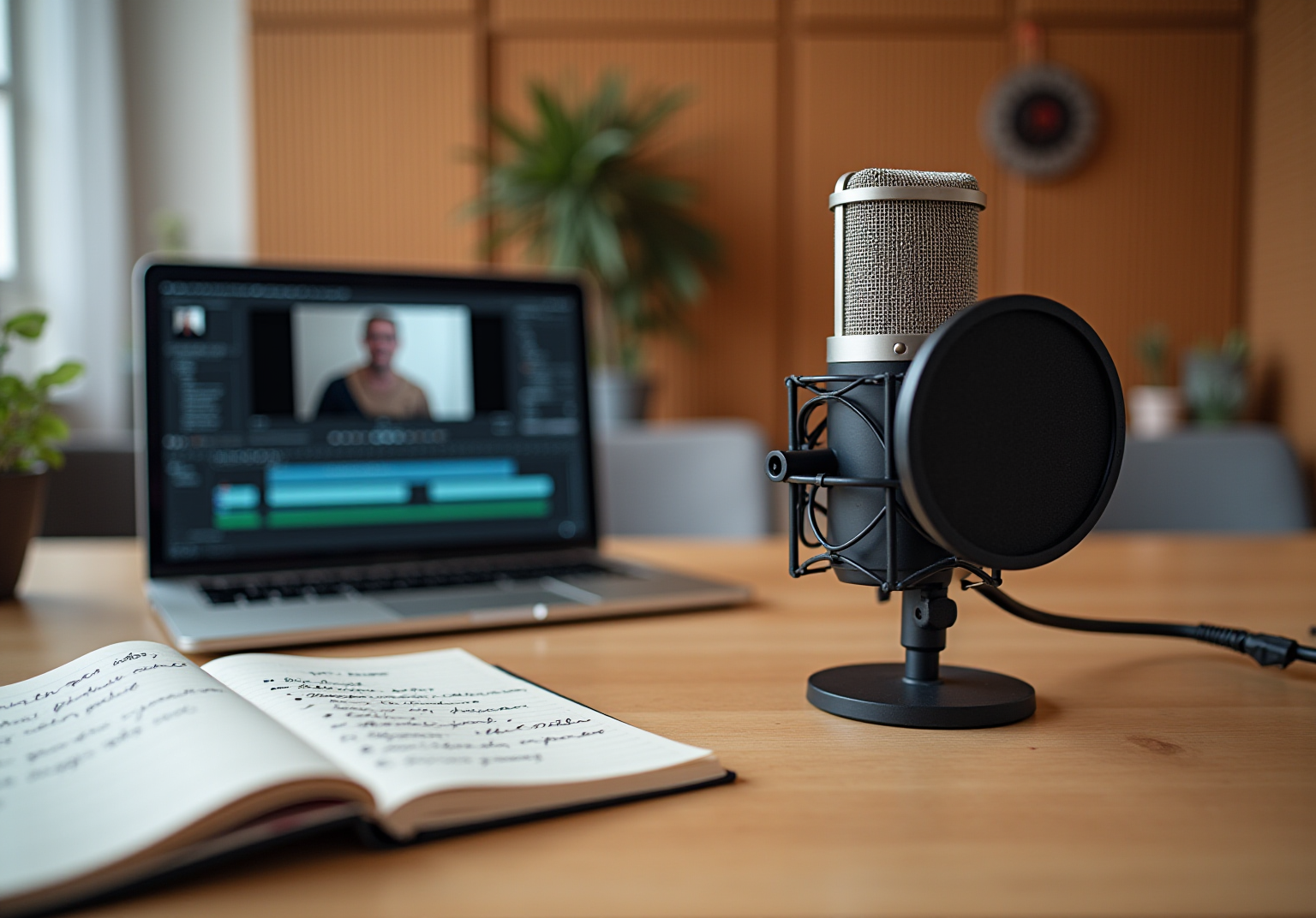
Choose the Right Microphone: You might be wondering what microphone to use. Investing in a quality microphone, like a USB condenser mic, is a great start-it captures clear sound! Steer clear of those built-in laptop mics; they tend to pick up all sorts of background noise. And hey, consider adding a pop filter to cut down on those pesky mouth noises and sibilance during your recording screencasts.
-
Set Up Your Recording Environment: Now, let’s talk about your recording space. Finding a quiet spot is key to minimizing background noise. Close those windows, turn off any fans, and silence any electronic devices that might interrupt your flow. Also, think about the room’s acoustics; using acoustic panels or soft furnishings can really help reduce echo and background noise.
-
Modify Sound Preferences: Before you hit record, double-check your sound settings in your capturing software. Make sure your microphone is selected and adjust those input levels to avoid distortion. Aim for levels between -12dB and -6dB for the best results.
-
Conduct a Sound Check: Here’s a pro tip: record a quick test clip to check your sound quality. Listen for clarity and tweak your settings as needed. This little step can save you from headaches later on when you’re deep into your actual recording screencasts.
-
Understand the Impact of Sound Quality: So, why does sound quality matter? Well, high-quality sound can really boost audience engagement. Did you know that 87% of consumers believe visual clarity influences their trust in a brand? Clear sound can help keep your viewers’ attention, too. Organizations that focus on audio quality often see better engagement metrics and higher conversion rates. Plus, 90% of marketers say that visual marketing has given them a solid return on investment (ROI). So, investing in sound quality is definitely worth it!

Set Up Screen Resolution
-
Determine the ideal resolution for your recording screencasts: You might be wondering what resolution to use. Well, for most cases, 1920x1080 (1080p) is the way to go if you want clarity. But if your content isn’t too complex, 1280x720 (720p) could work just fine.
-
Adjust Display Settings: Now, let’s talk about how to adjust those display settings. If you’re on Windows, just right-click on your desktop and select 'Display settings'. For Mac users, head over to 'System Preferences' and then 'Displays'. Set that resolution to what you need!
-
Check Aspect Ratio: Have you checked your aspect ratio yet? Make sure it’s set to 16:9, which is the standard for most film formats. This little step helps prevent those annoying black bars from sneaking into your recording screencasts.
-
Test Your Setup: Finally, it’s time to test your setup! Open up a sample application or webpage and see how it looks at your chosen resolution. If something seems off, don’t hesitate to make adjustments to ensure everything is visible and easy to read.

Synchronize Audio While Recording
-
Got a Script?: You might be wondering why a script is so important for effective narration. Well, having a solid outline not only keeps your narration in sync with the visuals but also amps up audience engagement. Studies show that when sound and visuals match, the bounce rate drops significantly. On the flip side, if things are out of sync, there's a 37% chance folks will lose interest in the first 15 seconds! Plus, using external microphones can really boost sound quality, which helps keep viewers glued to the screen.
-
Capture Sound and Footage Together: Now, let’s dive into the tech side! Have you tried using software for recording screencasts that captures both sound and footage at the same time? Tools like Adobe Premiere Pro or OBS Studio do just that. By recording screencasts this way, everything is in sync from the get-go, which means less hassle in post-production. Companies that go this route often find their workflows smoother and their outputs looking sharper.
-
Create a Sync Point: Here’s a handy tip: at the start of your capture, make a visual signal-like a clap-to help align your sound and video tracks later if needed. This technique, often called the clap method, is a favorite among pros and can really streamline your editing process.
-
Monitor Levels: Lastly, don’t forget to keep an eye on those sound levels while you’re capturing! It’s super important to maintain consistency. You might need to tweak things a bit to avoid distortion from peaks. Good audio management is key, because even tiny discrepancies can take away from the professionalism of your content.

Manage Recording Actions Effectively
-
Plan Your Actions: You might be wondering how to kick things off. Start by outlining the steps you want to showcase. A solid plan not only keeps things flowing logically but also helps you avoid missing any key points when you’re documenting your process.
-
Practice Your Delivery: Now, let’s talk about practice. Rehearse your presentation a few times to get comfortable with the material. This prep work is crucial for cutting down on those pesky filler words and awkward pauses, leading to a smoother audio experience. Did you know that 90% of marketers say that practicing boosts engagement? It’s true - well-rehearsed presentations really do make a difference!
-
Use Screen Annotations: Speaking of keeping attention, have you tried using screen annotations? Those handy tools in your recording screencasts software can help highlight key areas on the screen while you speak. This not only grabs your audience’s focus but also reinforces important info, making it easier for them to follow along.
-
Stay Engaged: Finally, let’s chat about engagement. Adopt a conversational tone and interact with your audience as if they were right there with you. This kind of delivery makes your content more relatable and boosts retention. Studies show that adding interactive elements can increase engagement by up to 48%! So, why not give it a shot?

Share and Upload Your Screencast
-
Choose a hosting platform: So, you might be wondering where to share your recording screencasts. Well, think about platforms like YouTube, Vimeo, or even a dedicated screencasting service like Screencastify. Each has its perks, so pick one that fits your needs!
-
Export Your Video: Next up, let’s talk about exporting your video. You’ll want to save your recording screencasts in a widely accepted format, like MP4, to make sure it plays nicely on most platforms. Don’t forget to check those export settings to keep your video quality top-notch!
-
Upload Your Screencast: Now, it’s time to upload your recording screencasts. Just follow the platform’s instructions, and while you’re at it, add a catchy title, some relevant tags, and a brief description. This will help viewers find your content easily!
-
Share the Link: Once your video is uploaded, share that link with your team or audience! You can do this via email, social media, or even your company’s internal channels. And hey, encourage them to give you feedback - it’s a great way to improve your future recordings!

Conclusion
Mastering the art of recording screencasts is super important for effective communication within teams. You might be wondering how to get started, right? Well, by following a structured approach - like prepping your audio, setting the right screen resolution, syncing audio and video, managing your recording actions, and sharing your final product - you can really boost the quality and impact of your screencasts. Each step is crucial in making sure your final output is not just professional but also engaging for your audience.
Let’s dive into some key insights from this guide.
- Sound quality, proper setup, and effective delivery are all game-changers.
- Using a quality microphone, picking the right resolution, and syncing your audio with visuals are essential for a successful recording.
- Planning your actions and practicing your delivery can take your presentation to the next level, making it more relatable and engaging for viewers.
- Sharing your screencast on the right platforms ensures that your hard work reaches the audience you want to connect with.
In a world where visual and auditory clarity can really make or break engagement, investing time and effort into mastering these screencasting techniques is totally worth it. So, why not embrace these best practices? Not only will you improve your own recordings, but you’ll also help foster better communication and collaboration within your team. Start implementing these strategies today, and watch your screencasts turn into powerful tools for sharing knowledge and ideas!
Frequently Asked Questions
What microphone is recommended for recording?
A quality microphone, such as a USB condenser mic, is recommended for clear sound. It is advised to avoid built-in laptop mics due to their tendency to pick up background noise.
How can I set up my recording environment effectively?
To set up your recording environment, find a quiet spot, close windows, turn off fans, and silence any electronic devices. Additionally, consider using acoustic panels or soft furnishings to reduce echo and background noise.
What sound preferences should I modify before recording?
Before recording, double-check your sound settings in your capturing software, ensure your microphone is selected, and adjust input levels to avoid distortion. Aim for levels between -12dB and -6dB for optimal results.
Why is it important to conduct a sound check?
Conducting a sound check by recording a quick test clip allows you to evaluate sound quality and make necessary adjustments, helping to prevent issues during your actual recording.
How does sound quality impact audience engagement?
High-quality sound can significantly boost audience engagement. Clear sound helps maintain viewer attention, and organizations that prioritize audio quality often see improved engagement metrics and higher conversion rates.
What is the ideal resolution for recording screencasts?
The ideal resolution for most cases is 1920x1080 (1080p) for clarity, while 1280x720 (720p) may suffice for less complex content.
How do I adjust display settings for recording?
For Windows, right-click on your desktop and select 'Display settings'. For Mac users, go to 'System Preferences' and then 'Displays' to adjust the resolution as needed.
What aspect ratio should I check before recording?
Ensure that the aspect ratio is set to 16:9, which is the standard for most film formats, to avoid black bars in your recording.
How can I test my recording setup?
To test your setup, open a sample application or webpage at your chosen resolution and check for visibility and readability. Make adjustments as necessary if something seems off.
👍
What others are liking


5 Steps to outline your ideal documentation structure
5 MINS READ
Where to start the your journey of mapping out your ideal documentation structure, aligning it with the very heartbeat of your organization?
Defining a winning level of detail in your process
3 MINS READ
What is too much detail, and what is too little? This article described in that winning level detail about what detail is enough.


